


Initial Setup Wizard
After successfully installing and activating WC Affiliate, a setup wizard will automatically appear. This wizard helps you configure the essential settings of your affiliate program quickly and efficiently.
First-Time Setup
The WC Affiliate Setup Wizard is designed to make your initial configuration smooth and beginner-friendly. If you skip the wizard, you can always configure these settings later from the WC Affiliate Settings menu.
You can access the setup wizard anytime from the WordPress Dashboard → WC Affiliate → Setup Wizard
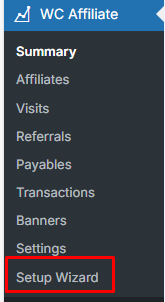
After clicking Setup Wizard, you will see the Welcome to WC Affiliate screen. Next,
- Click Let’s get started! to start the setup wizard
- Click Skip to skip the wizard and configure everything manually later
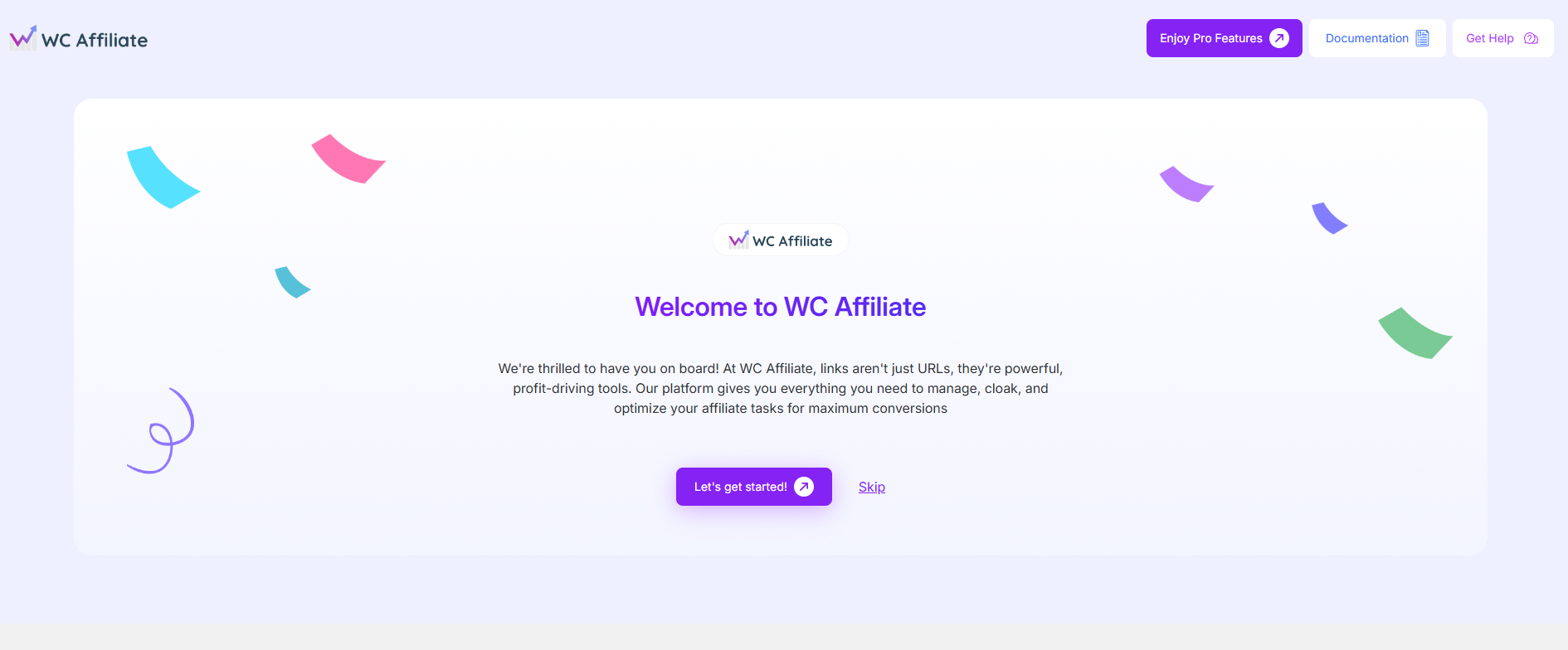
It is recommended to complete the wizard for faster setup.
Steps of the WC Affiliate Setup Wizard
The setup wizard guides you through the following core configurations to get your affiliate program up and running.
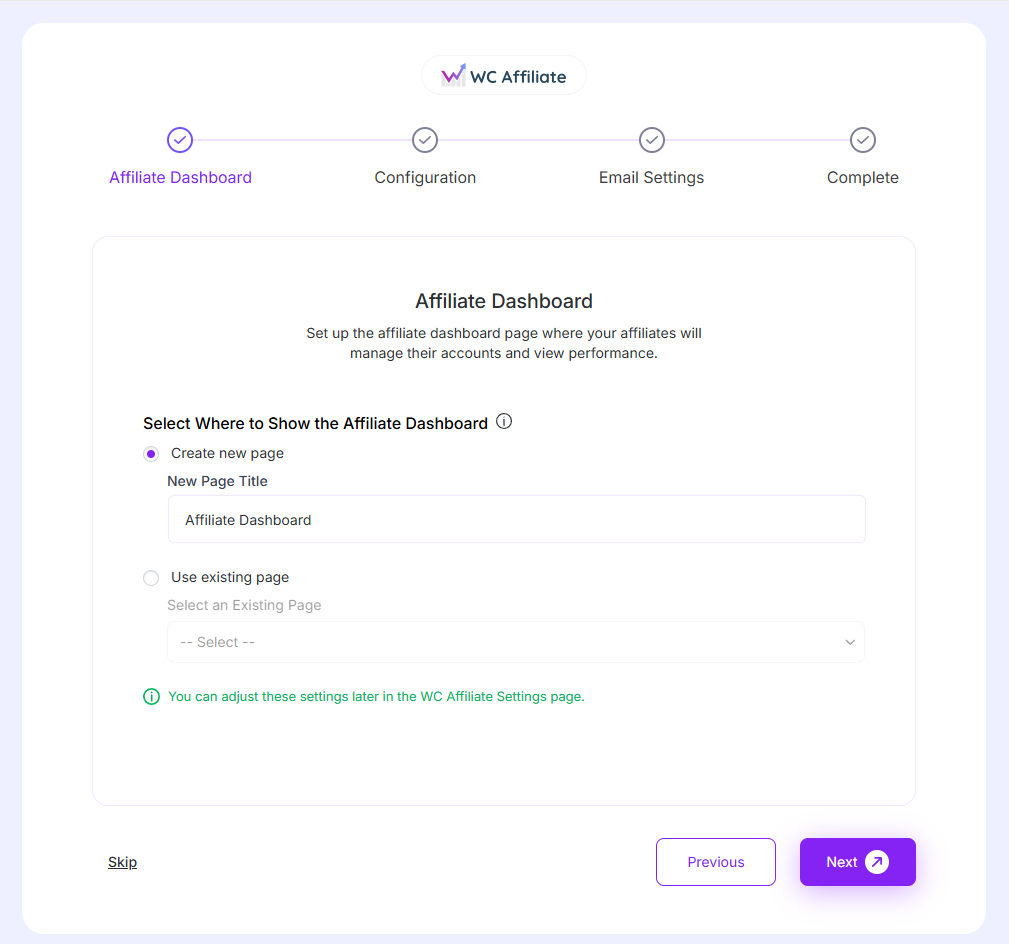
1. Affiliate Dashboard
The first step helps you set up the Affiliate Dashboard, which is the main area affiliates will use to manage their accounts. From the Affiliate Dashboard, affiliates can:
- View referrals, visits, and earnings
- Generate and manage affiliate links
- Track performance and commissions
Page Setup Options
You can choose where the Affiliate Dashboard will be displayed:
- Create a new page (Recommended): WC Affiliate will automatically create a new WordPress page and insert the required shortcode. OR
- Use an existing page: If you already have a page you want to use as the Affiliate onboarding page, you can select it from the dropdown list.
Where to find later?
This setting can be changed at any time in WC Affiliate → Basic Settings. Click Next to continue.
2. Configuration
In this step, you configure the core commission and tracking rules for your affiliate program.
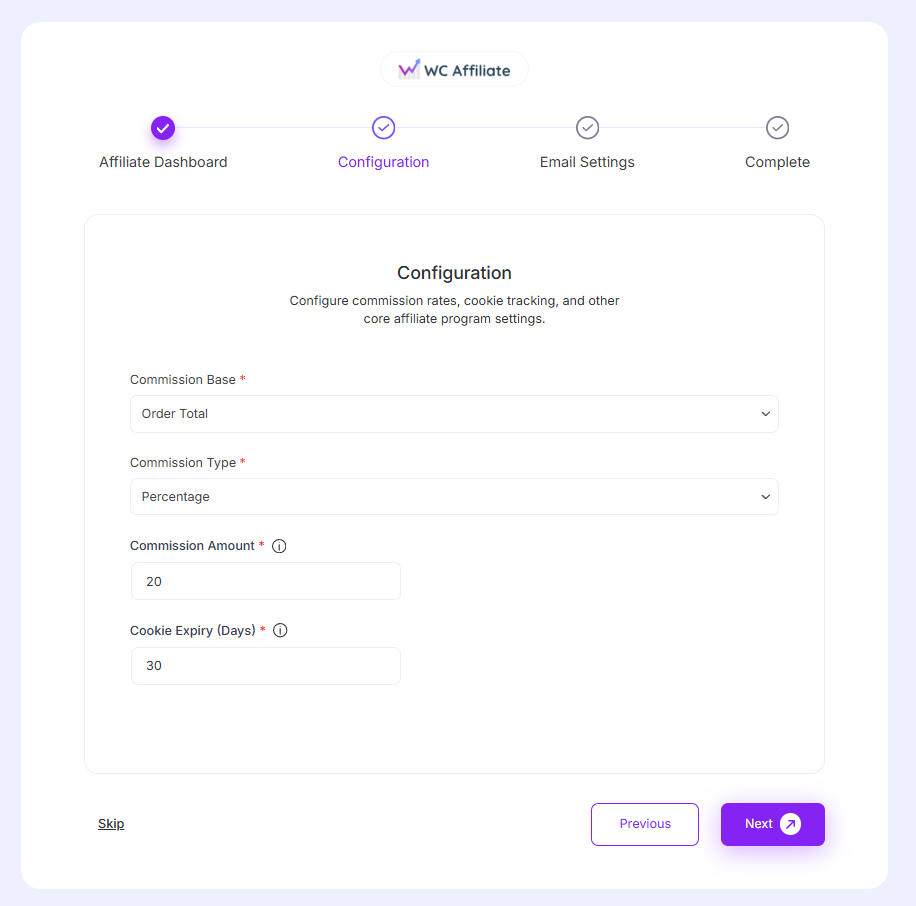
Available Settings
- Commission Base: Choose how commissions are calculated (e.g., Order Total).
- Commission Type: Select whether the commission is a percentage or Fixed.
- Commission Amount: Define the default commission value for affiliates.
- Cookie Expiry (Days): Set how long the referral cookie will remain active after a visitor clicks an affiliate link.
Adjust these settings according to your business requirements, then click Next.
Where to find later?
These options can be modified anytime from WC Affiliate → Settings → Basic Settings
3. Email Settings
The Email Settings step allows you to control which notifications are sent to administrators and affiliates.
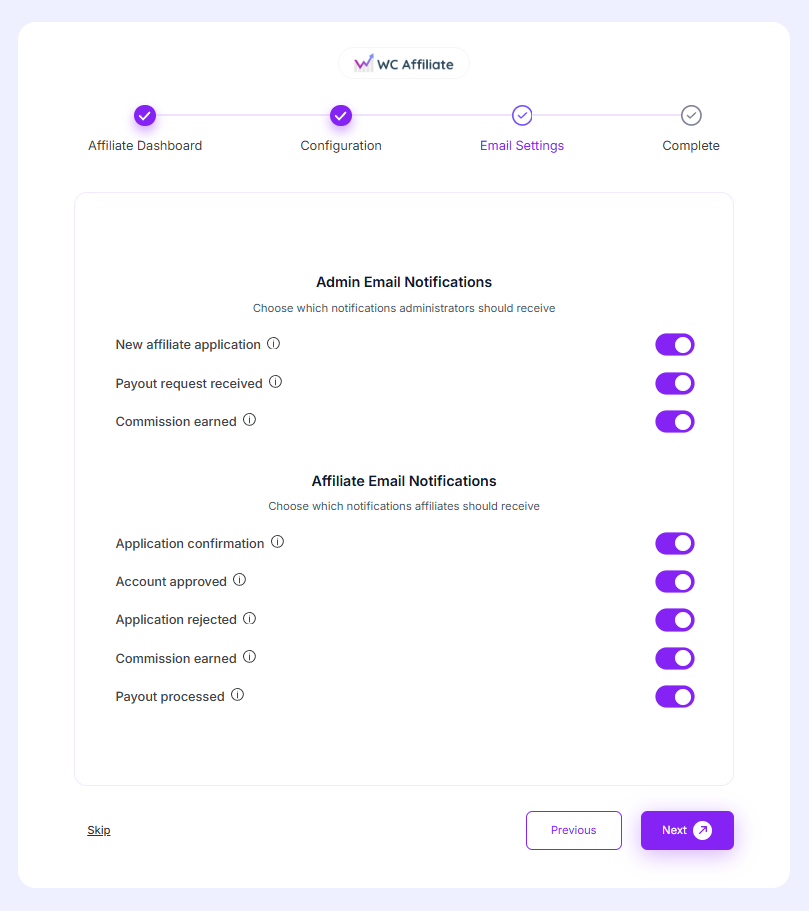
Admin Email Notifications
Enable or disable notifications for administrators when:
- A new affiliate application is submitted
- A payout request is received
- A commission is earned
Affiliate Email Notifications
Choose which emails affiliates should receive, including:
- Application confirmation
- Account approval
- Application rejection
- Commission earned
- Payout processed
Make sure these notifications are enabled correctly so both admins and affiliates stay informed. Click Next to continue.
Where to find later?
Email notification settings are available at WC Affiliate → Settings → Email
4. Complete Setup
After completing all previous steps, you will reach the Complete screen.
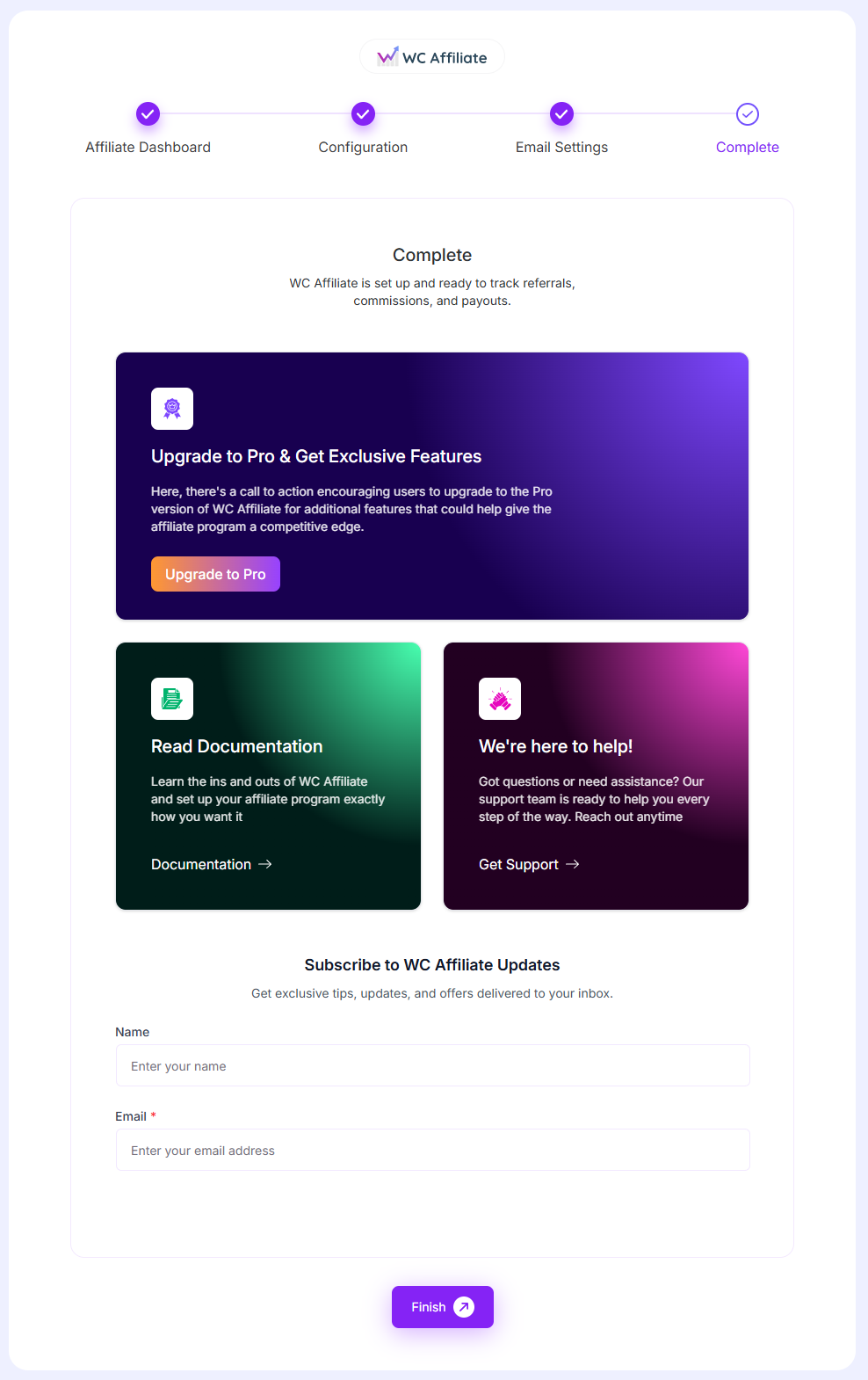
Congratulations! WC Affiliate is now set up and ready to track referrals, commissions, and payouts. From this screen, you can:
- Upgrade to WC Affiliate Pro for advanced features
- Read the official documentation
- Contact support if you need help
- Subscribe to WC Affiliate updates
Click the Finish button to complete the setup. After clicking Finish, you will be redirected to the WC Affiliate Dashboard.
Completing the Wizard & Next Steps
The setup wizard helps you get started quickly, but to fully optimize your affiliate program, you may want to:
- Review and fine-tune commission settings
- Customize affiliate email templates
- Create product-specific commission rules (Pro)
- Test referral tracking with a sample order
- Monitor performance from reports and analytics
All settings can be managed anytime from the WC Affiliate menu in your WordPress dashboard.
Was this doc helpful?