Your best customers already tell their friends about your store. A referral program gives that habit a link, a reward, and a way to track the sale.
This guide shows you how to set up a referral program in WooCommerce from start to finish. You’ll choose a reward, decide who can refer, share links, and confirm that every sale is tracked. The steps use WC Affiliate, but the planning sections apply to any plugin.
What Is a WooCommerce Referral Program?

A WooCommerce referral program rewards people for bringing new customers to your online store.
Participants receive unique referral links or codes they can share with others. When someone makes a qualifying purchase through one of those referrals, the participant earns a reward based on your program rules.
For example, imagine you sell WordPress themes for $100.
You offer a 10% referral commission. A customer shares their referral link with a friend, who purchases a theme using that link.
The referrer earns $10, assuming the full $100 qualifies for commission.
Instead of paying for clicks that may never become customers, you’re rewarding a completed sale.
Referral Program vs Affiliate Program: Which Do You Need?
People trust people. In Nielsen’s 2021 trust study, 89% of people said they most trust recommendations from people they know. That’s why referrals convert well. The real question is who you want doing the recommending.
A referral program usually targets your existing customers. An affiliate program is open to anyone, including bloggers, YouTubers, and newsletter writers.
| Referral program | Affiliate program | |
| Who refers | Existing customers | Anyone you approve |
| Typical reward | Discount, store credit, or points | Cash commission |
| Main goal | Repeat sales and word of mouth | New audiences and reach |
| Tracking | Personal link or code | Referral link, coupon, or shortlink |
The line blurs fast. A customer who earns a 10% commission for every friend they bring is, technically, an affiliate. WC Affiliate treats both the same way, so one plugin can run a customer program and a creator program side by side. You can also promote existing WordPress users to affiliates without creating new accounts.
If you want the wider picture, our WooCommerce affiliate marketing guide covers the affiliate side in depth.
Before You Start: Decide Four Things
A few choices shape everything else. Settle them first and the setup itself is quick.
1. Who can refer? You can limit the program to customers or open it to anyone. A customers-only program is small and low-risk. Opening it to creators brings more reach, but you’ll want to approve each applicant. If that’s your plan, here’s how to get more affiliates for your WooCommerce store.
2. What does the referrer earn? The usual options are a cash commission, store credit, or a discount on their next order. WC Affiliate pays commissions, either a fixed amount or a percentage of the sale. If you’d rather give points or store credit, a loyalty plugin is a more direct fit.
3. What does the friend get? A reward for the friend gives them a reason to click. In WC Affiliate Pro, the Referral Discounts feature lets affiliates offer a discount on their links. In the free version, you can run a regular WooCommerce coupon for new customers instead.
4. How long does a referral last? When someone clicks a referral link, a cookie remembers who sent them. The cookie duration sets how long that credit lasts. A 30-day window is a reasonable start for low-priced items. Use a longer one for products people think about before buying.
How to Set Up a Referral Program in WooCommerce
You can build a working referral program in six steps using WC Affiliate.
The process starts with installing the plugin and ends with tracking successful referrals and paying your participants.
Step 1: Install and Activate WC Affiliate
First, install WC Affiliate on your WordPress website.
Log in to your WordPress admin dashboard. Navigate to Plugins → Add New Plugin. Then, Search for WC Affiliate. Click Install Now, then Activate.
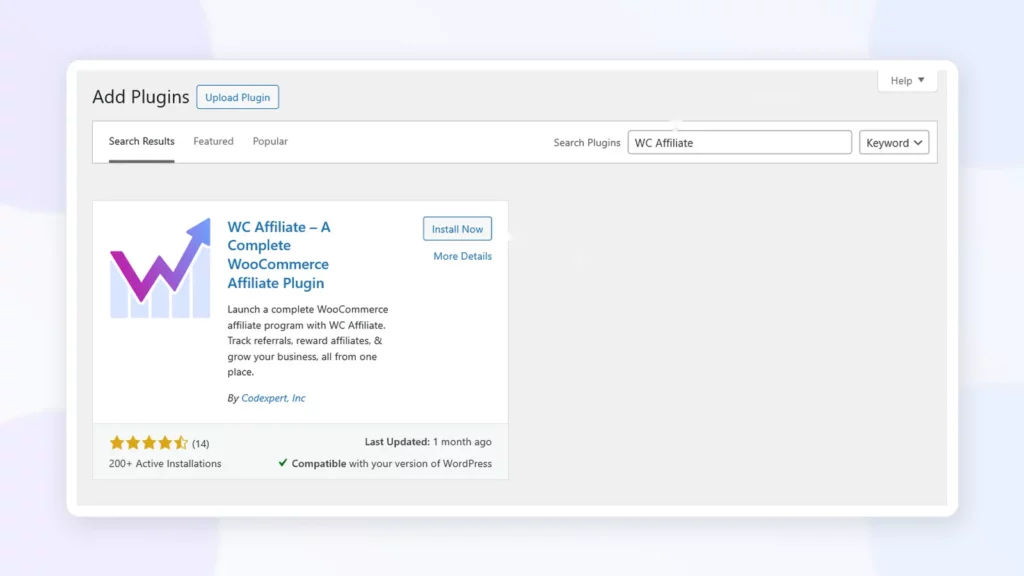
Open WC Affiliate from your WordPress dashboard.
After activation, WC Affiliate provides a setup wizard to help configure your program. You can follow the wizard immediately or return to it through WC Affiliate → Setup Wizard.
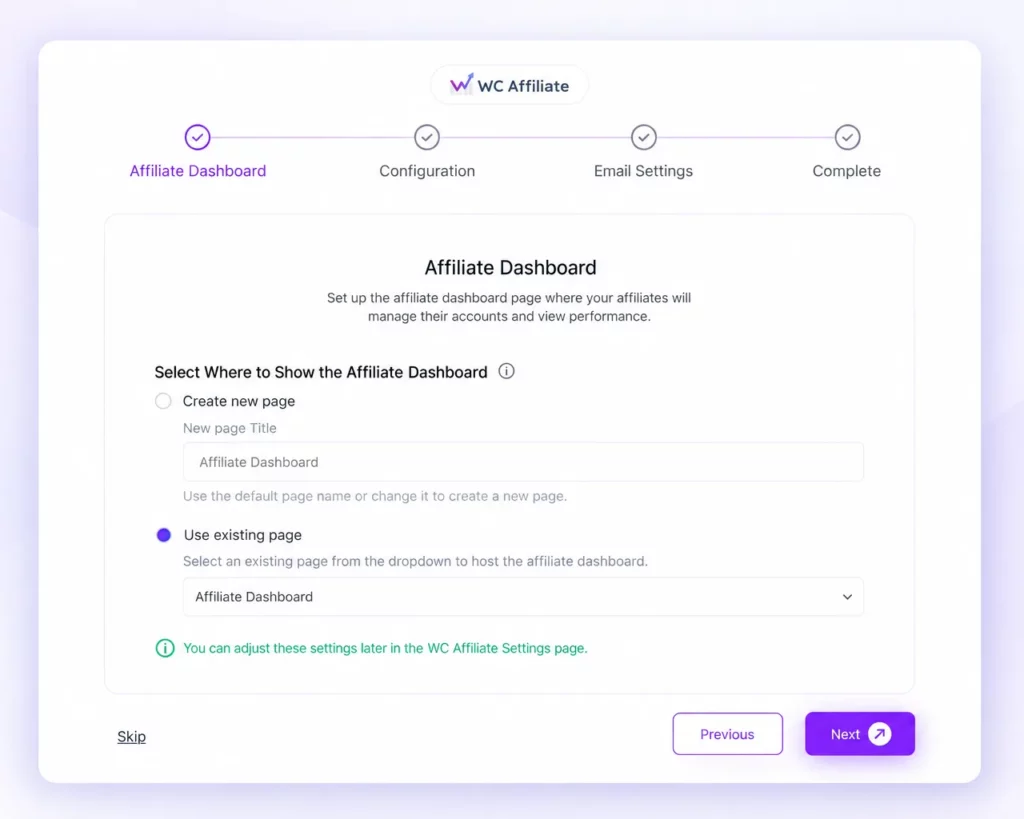
The wizard allows you to create an affiliate dashboard, configure commissions, set referral tracking duration, and manage email notifications.
For a complete walkthrough, follow the WC Affiliate setup wizard guide.
Step 2: Configure Your Referral Program Settings
Next, decide how people can join your referral program.
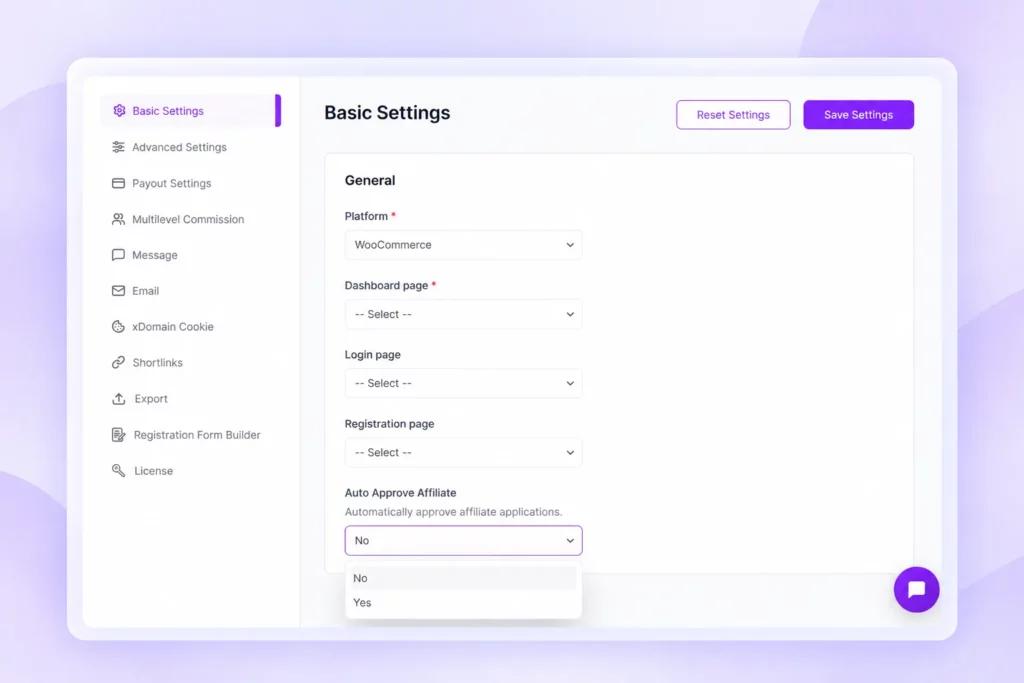
Go to: WordPress Dashboard → WC Affiliate → Settings → Basic Settings
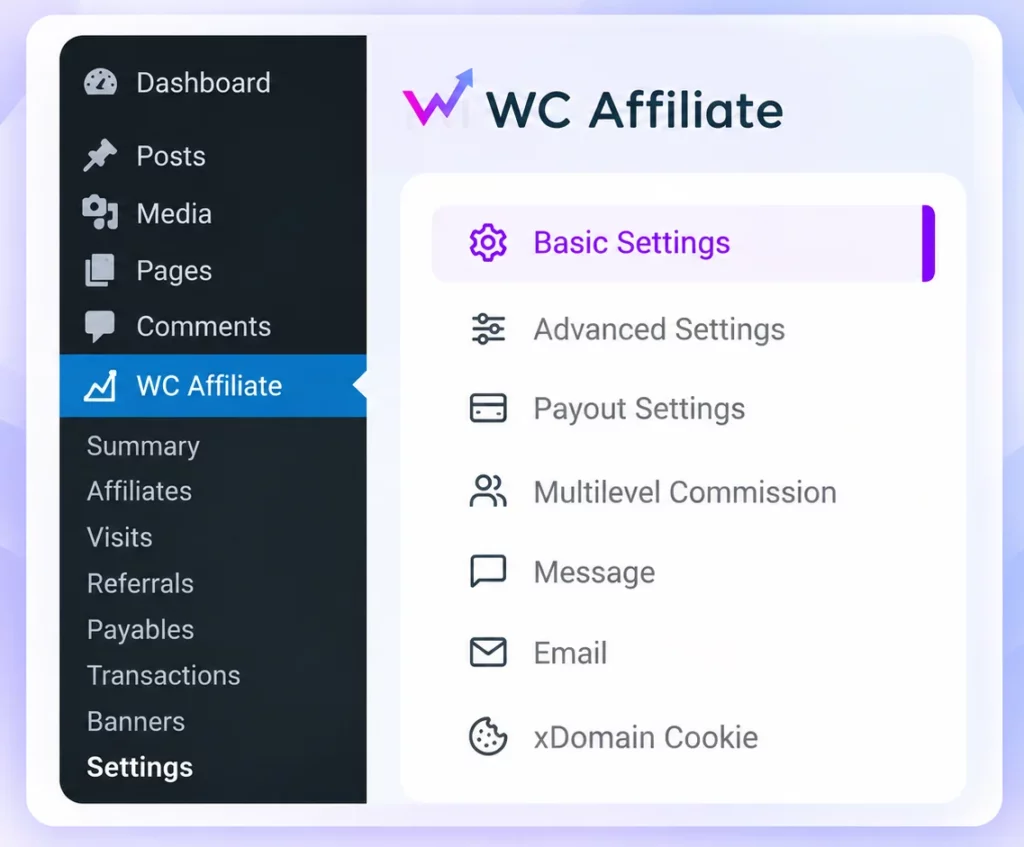
In the General section, configure the pages participants will use to register, log in, and access their dashboards.
Pay particular attention to these settings:
- Registration Page: Choose where new affiliates can apply.
- Login Page: Select the login page for existing affiliates.
- Dashboard Page: Choose where participants can view their referrals and commissions.
- Auto Approve Affiliate: Decide whether applications are approved automatically or require review.
For a new program, manual approval is often a practical starting point.
It gives you an opportunity to review applicants before they begin promoting your products.
You should also configure the referral cookie duration.
For example, with a 30-day cookie period, a visitor who clicks a referral link may remain eligible for attribution if they return and purchase within that period, subject to your tracking and attribution settings.
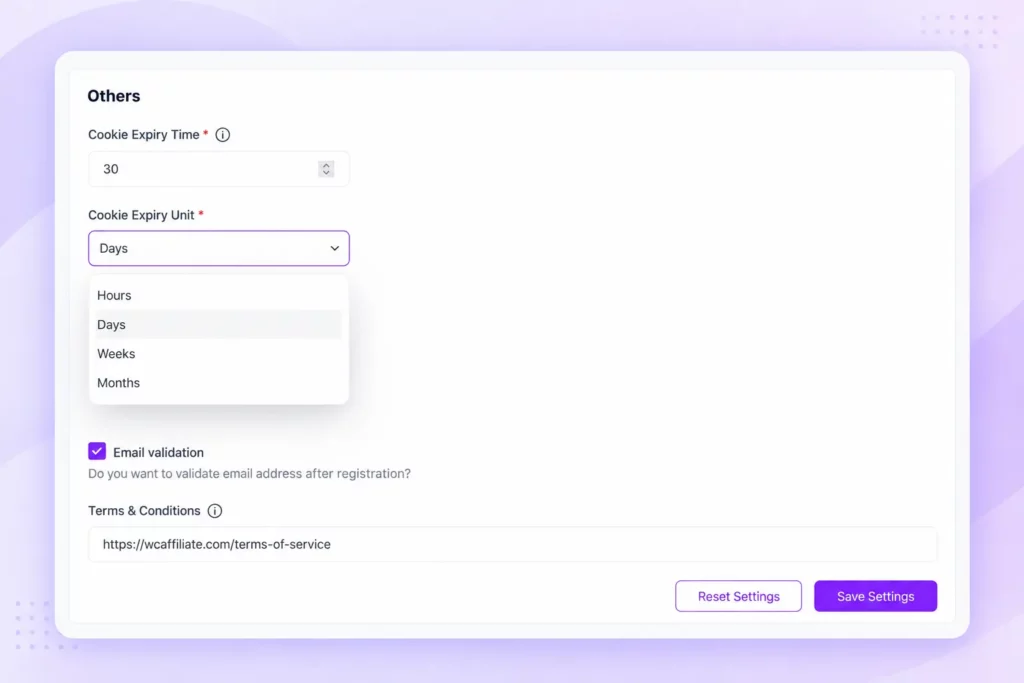
A longer cookie period gives customers more time to make purchasing decisions, but you should choose a duration that suits your products.
Finally, add clear terms and conditions explaining eligibility, commission rules, and payout requirements.
Step 3: Set Your Referral Commission Rates
Now decide how much participants will earn for successful referrals.
WC Affiliate supports two main commission types:
(i) Percentage commission: The affiliate earns a percentage of the eligible purchase amount.
For example, if the commissionable amount is $100 and your rate is 10%, the affiliate earns $10.
(ii) Fixed commission: The affiliate earns a set amount for each qualifying purchase.
For example, you might offer $15 for every qualifying order, regardless of its total value.
To configure commissions, open:
WC Affiliate → Settings → Basic Settings → Affiliate Commission
Set the commission base, commission type, and commission amount.
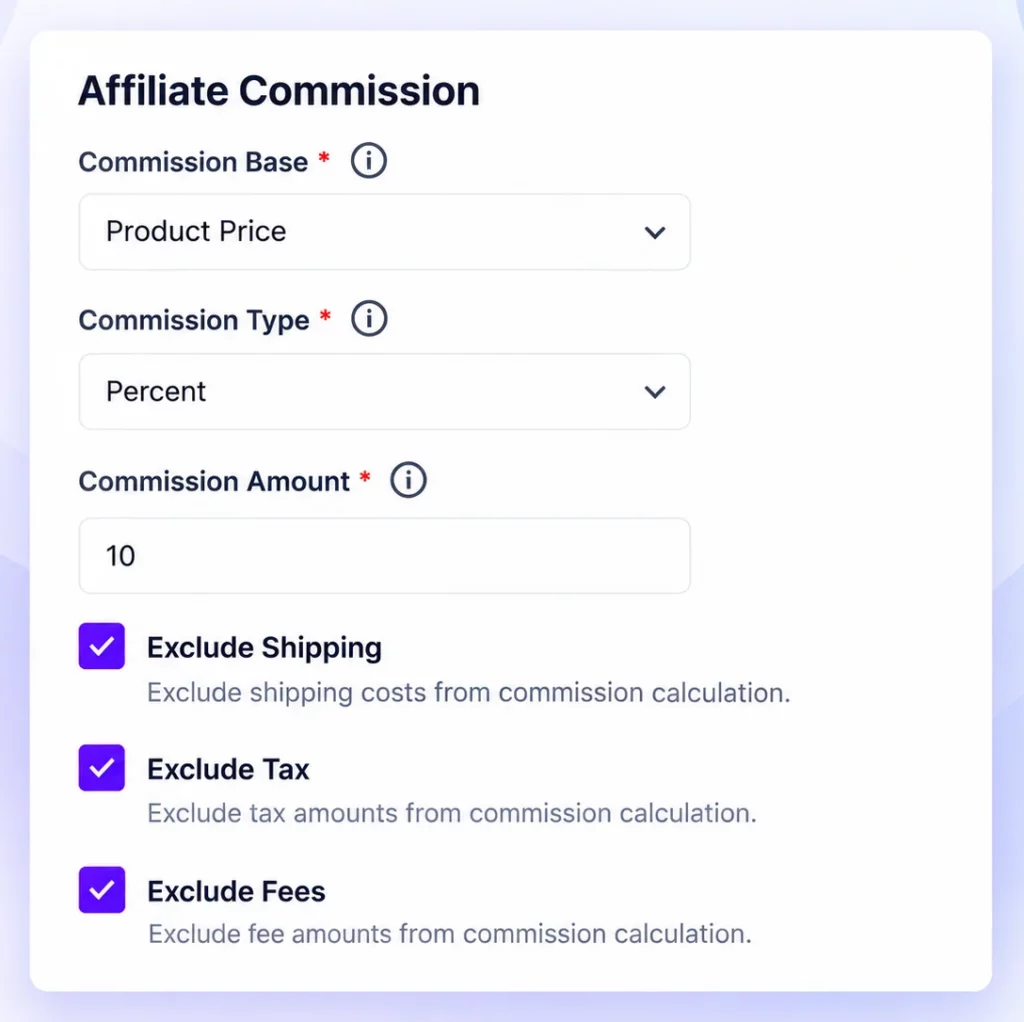
You can also choose whether shipping, taxes, and additional fees should be excluded from commission calculations.
If you exclude shipping and tax, a 10% commission on the $100 product amount would equal $10 rather than $11. This distinction matters because your commission expenses should reflect your actual profit margins.
Step 4: Create and Share Referral Links
Once your settings are ready, participants need their referral links. After an affiliate registers and receives approval, they can log in to their personal dashboard.
WC Affiliate includes a URL generator that allows affiliates to create trackable links to different pages of your store.
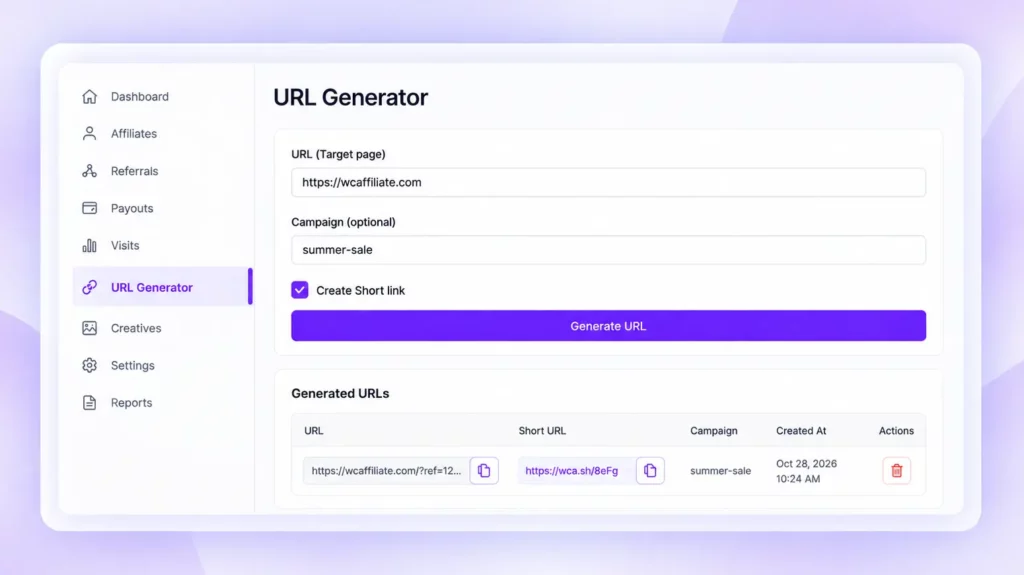
For example, an affiliate might generate a link similar to:
https://yourstore.com/product/example/?ref=123
The referral identifier helps the plugin associate tracked visits and qualifying purchases with that affiliate.
An affiliate can create links for specific products, categories, or other eligible store pages.
They can then share those links through blog posts, email newsletters, social media, or other approved promotional channels.
For example, a content creator reviewing your product can place their referral link inside the review.
When a reader visits your store through that link and completes a qualifying purchase, the affiliate becomes eligible for commission.
You can learn more about how this works in the WC Affiliate dashboard overview.
Step 5: Track Referral Sales and Commissions
Sharing referral links is only part of the process. You also need to know which links bring actual sales.
WC Affiliate records tracked referrals and connects them to the associated WooCommerce orders.
To review this information, go to: WordPress Dashboard → WC Affiliate → Referrals
You’ll find information such as:
- Affiliate associated with the referral
- Commission amount
- Related WooCommerce order
- Products purchased
- Order total
- Referral status
Suppose an affiliate sends 50 visitors to your store. Three visitors complete qualifying purchases worth $100 each.
With a 10% commission on each eligible $100 order, the affiliate generates $30 in commissions. You can review those transactions individually rather than calculating commissions manually.
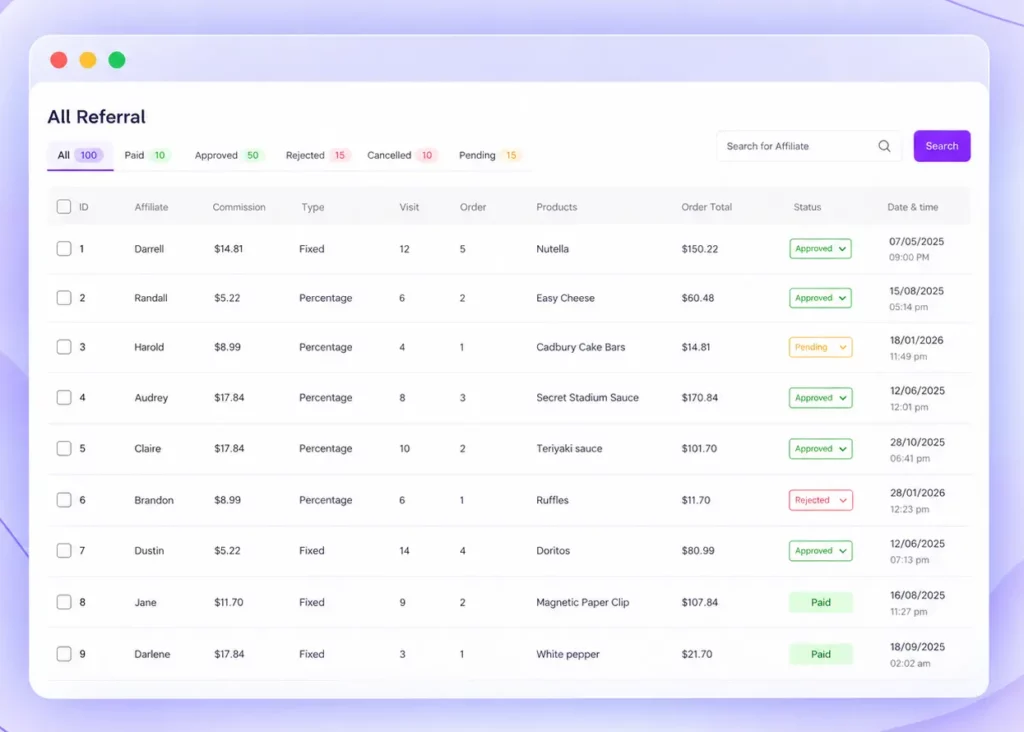
WC Affiliate also allows you to configure how referral statuses respond to WooCommerce order statuses, including completed, cancelled, and refunded orders.
This helps prevent commissions from being treated as payable before the related orders meet your requirements.
Step 6: Configure Referral Payouts
The final setup step is deciding how affiliates receive their earnings.
Open:
WC Affiliate → Settings → Payout Settings
Here, you can configure available payout methods and set a minimum payout amount.
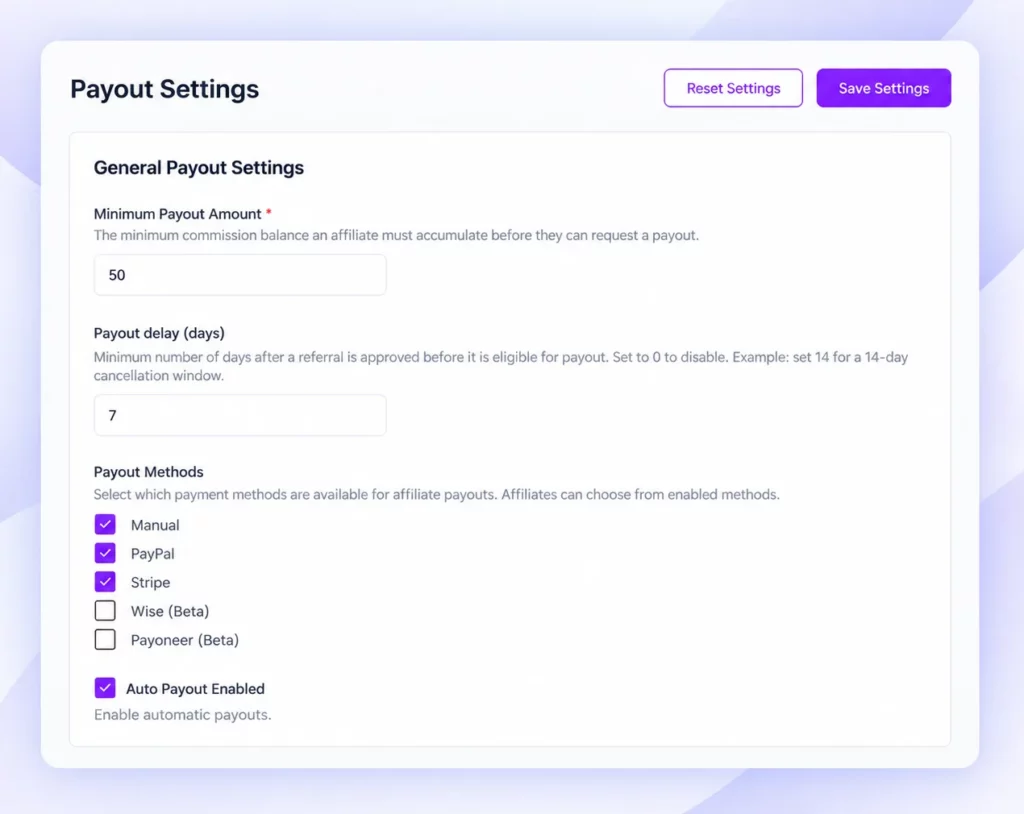
For example, setting a $50 minimum means an affiliate must accumulate at least $50 in eligible earnings before requesting a payout.
WC Affiliate provides manual payouts and supports payment integrations involving PayPal, Stripe, Wise, and Payoneer with availability and processing behavior depending on the selected method and configuration.
Manual payouts are useful if you want to transfer money outside the plugin and record the payment afterward.
Before enabling payouts, decide:
- What is the minimum payout threshold?
- How often will payments be processed?
- Which payment methods will be accepted?
- What happens if a previously referred order is refunded?
Clearly communicate these rules to participants.
You can review the available options in the official WC Affiliate payout settings documentation.
Link Tracking or Coupon Tracking?
A referral link works through a cookie. It needs a click, and the buyer has to use the same browser to check out. That’s fine for most sharing.
Customers also share by voice, in group chats, or on podcasts, where a link doesn’t fit. A coupon code solves that. With Pro coupon tracking, an affiliate gets a unique WooCommerce coupon, and the commission is credited when it’s used at checkout. No click is needed. It also works on platforms that strip links, such as Instagram bios and YouTube descriptions.
Many stores offer both. If you want to compare the methods in detail, read our guides on affiliate tracking methods and coupon code tracking.
How WC Affiliate Compares With Other Options
There are several ways to run referrals on WooCommerce. This table compares the main types.
| Option | Who can refer | Reward | Managed from |
| WC Affiliate | Customers, creators, anyone you approve | Fixed or percentage commission; Pro adds multi-level commissions and bonuses | WordPress dashboard |
| Loyalty and points plugins (e.g., WPLoyalty) | Existing customers | Points, percentage or fixed discount, free shipping, or a free product | WordPress dashboard |
| WooCommerce.com Affiliate & Referral extension | Customers and affiliates | Discount for the friend, reward for the referrer | WordPress dashboard |
| AutomateWoo Refer A Friend | Customers | Rewards plus email automation; requires AutomateWoo | WordPress dashboard |
| Hosted referral tools (e.g., ReferralCandy, Retainful) | Customers | Rewards and emails set up in the vendor’s account | Vendor’s dashboard |
Pricing changes often, so check each vendor’s page before you decide. WC Affiliate has a free version and a lifetime Pro license with no recurring fees. It also has no affiliate cap, so your cost doesn’t change as the program grows.
It fits best when you want cash commissions, or when you want customers and creators in one place. If you only want to hand out points or store credit to customers, a loyalty plugin is the simpler choice.
Common Mistakes to Avoid
- Paying more than your margin allows. Run the math from earlier before you set a rate.
- Approving everyone. Use manual approval and look at each applicant’s site or profile.
- Paying without checking. Review the Referrals screen before you approve a payout. Look for orders placed with the affiliate’s own email or address.
- Skipping written terms. Publish a short page covering payout minimums, refunds, and a ban on self-referrals.
- Ignoring disclosure. If creators promote you, the FTC expects them to disclose the relationship. Share the FTC’s endorsement guidance with them.
- Launching quietly. A program nobody knows about won’t bring in sales.
How to Get More Referrals From Your WooCommerce Store
Once your program is working, the next challenge is finding people who want to participate.
You don’t necessarily need hundreds of affiliates to get started. A few motivated participants who genuinely understand your products can be more valuable than a large group that rarely promotes anything.
Here are some practical ways to grow:
- Invite existing customers: Reach out to satisfied customers who already recommend your products.
- Add a post-purchase invitation: Let customers know about your referral program after they complete an order.
- Keep referral links accessible: Make it easy for participants to log in, generate links, and view earnings.
- Offer useful promotional materials: Provide product details, images, and clear explanations that participants can share.
- Review performance regularly: Identify which participants and products generate qualified sales.
If your affiliates prefer sharing discount codes, coupon-based referral tracking can also be useful.
For example, a creator may find it easier to mention a personal coupon code in a video than ask viewers to open a specific URL. WC Affiliate provides coupon-based affiliate tracking as a promotional option.
Once people begin joining, a consistent onboarding process becomes important. Our guide to affiliate onboarding explains how to help new participants prepare for their first sale.
Remember that a successful referral program isn’t just about generating clicks. It should attract customers who are genuinely interested in purchasing your products.
Conclusion
A referral program is a low-cost way to turn happy customers into a sales channel. Decide your reward and the math first, then set up tracking, test one real order, and promote it.
You can start with the free version of WC Affiliate and add Pro features when your program needs them.
Frequently Asked Questions
No. WooCommerce has no native referral or affiliate feature. You need a plugin, such as WC Affiliate, to create referral links, track sales, and manage rewards.
It depends on the reward. Choose an affiliate plugin like WC Affiliate for cash commissions and unlimited referrers. Choose a loyalty plugin if you want to give points or store credit.
A referral program rewards existing customers who bring friends. An affiliate program is open to anyone, such as bloggers and creators, and usually pays commissions. WC Affiliate can run both.
Base it on your margin. Many WooCommerce stores pay 5% to 15% on physical products. Subtract the commission and any friend discount from your margin to check that you still profit.
Use a plugin that assigns each person a unique link or coupon code. It records the click, credits the order, and shows the result in a referrals report. Test it with a real order.