


The Payout Settings section allows you to control how and when your affiliates get paid. From setting a minimum payout threshold to configuring PayPal, Stripe, Wise and Payoneer integrations, everything can be managed from this screen.
To access payout settings: WordPress Dashboard → WC Affiliate → Settings → Payout Settings
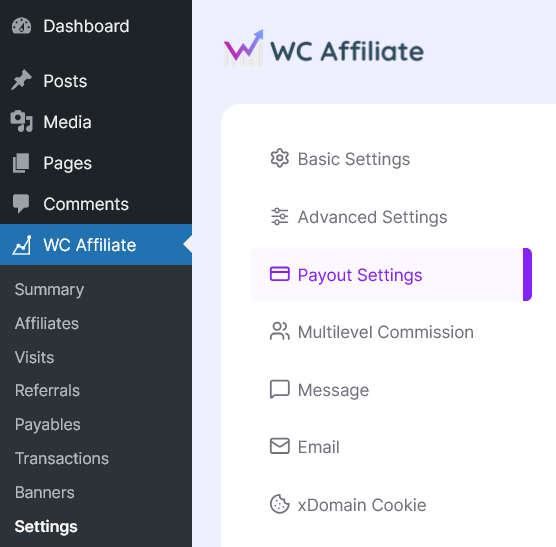
General Payout Settings
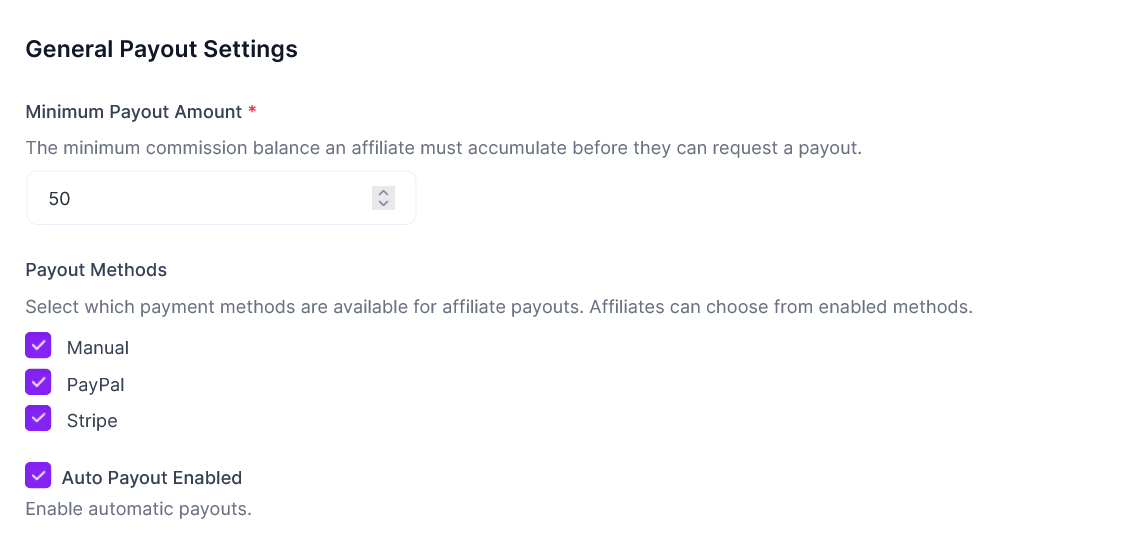
Minimum Payout Amount: Set the minimum commission balance an affiliate must reach before they can request a payout. If set to 50, affiliates must earn at least $50 before submitting a payout request. This helps reduce small, frequent transactions and payout processing fees.
Payout Methods: Choose which payment methods are available to affiliates. Affiliates can select from the enabled methods when requesting payouts.
Available options:
- Manual – You process payments outside the system (e.g., bank transfer, check, custom method).
- PayPal – Pay affiliates directly via PayPal.
- Stripe – Pay affiliates using Stripe Connect.
- Payoneer – Global affiliate payouts made simple
- Wise – Transfer payouts across 160+ countries
- Auto Payout Enabled – Automatically process payouts when affiliates request a payout (available for supported gateways).
💡 If Auto Payout is disabled, you have to manually review and approve payout requests.
PayPal Configuration
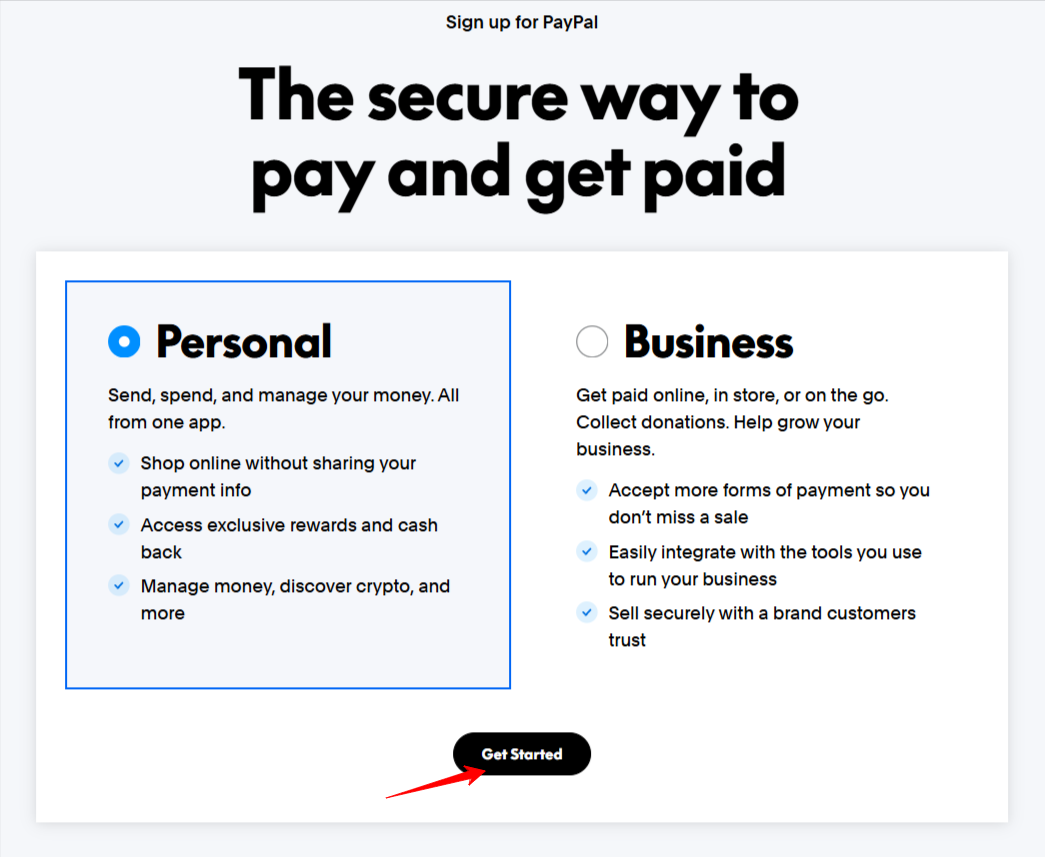
If you do not already have a PayPal account, you will need to create one first. To get started, click the Get Started button and choose either a Personal or Business account depending on your needs.
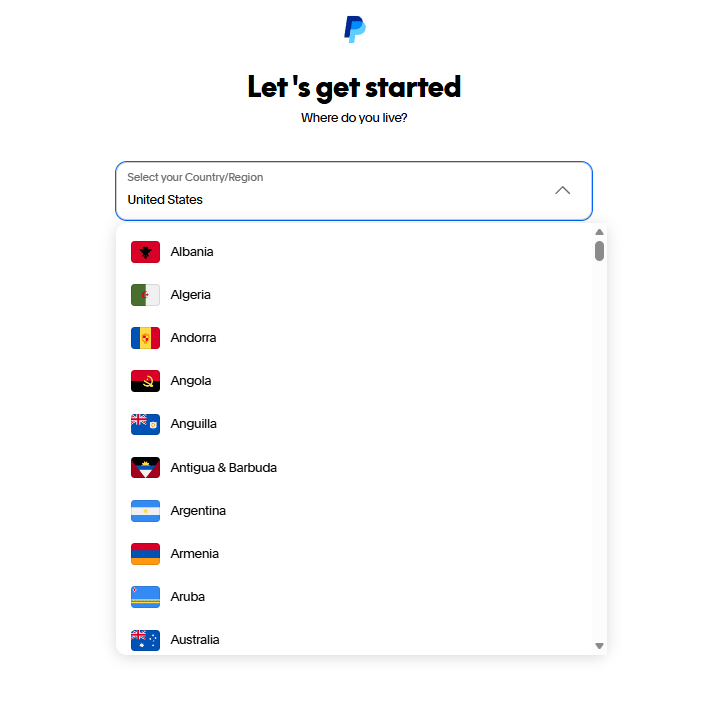
Then select your country from the dropdown list and provide the required information, such as your email address and phone number.
Once you complete the registration process and verify your details, your PayPal account will be successfully set up. To enable PayPal payouts, you must connect your PayPal developer credentials. There are some required fields for this section.
Client ID & Secret Key
- Found in your PayPal Developer Dashboard
- Located under your app credentials
- Keep this key secure and do not share it with anyone
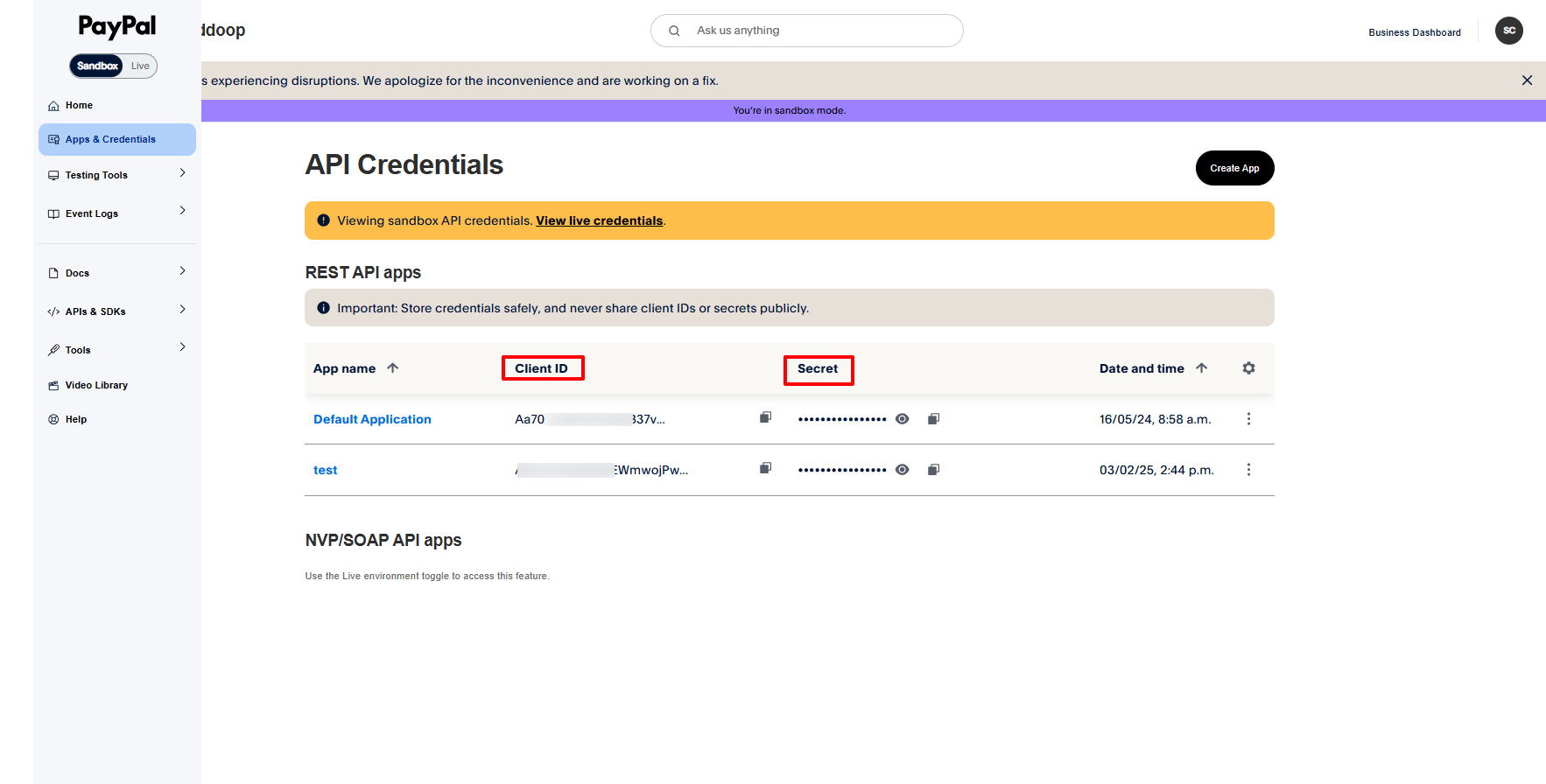
Copy and paste the Client ID and Secret Key into the corresponding fields under Payout Methods from WC Affiliate > Settings > Payout. Click Save Settings.
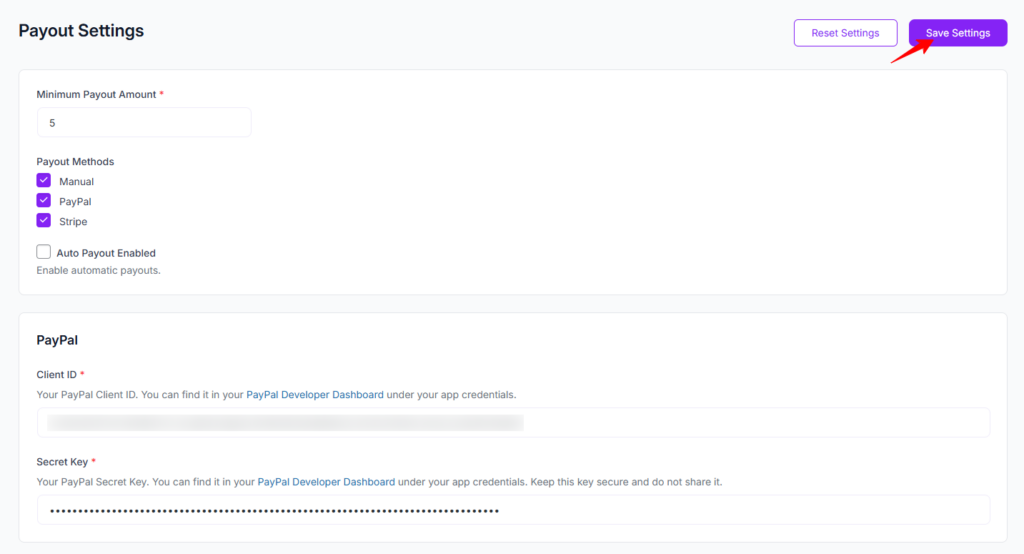
Once configured, affiliates can receive payouts directly to their PayPal accounts.
Stripe Configuration
Stripe payouts use Stripe Connect to send funds directly to affiliates’ Stripe accounts. For this section, there are also some required fields, like PayPal. Take a look at it.
To enable affiliate payouts via Stripe using the WC Affiliate plugin, you’ll need to connect your Stripe account by entering your Client ID and Secret Key. Follow the steps below to start paying your affiliate easily:
Stripe Account Creation:
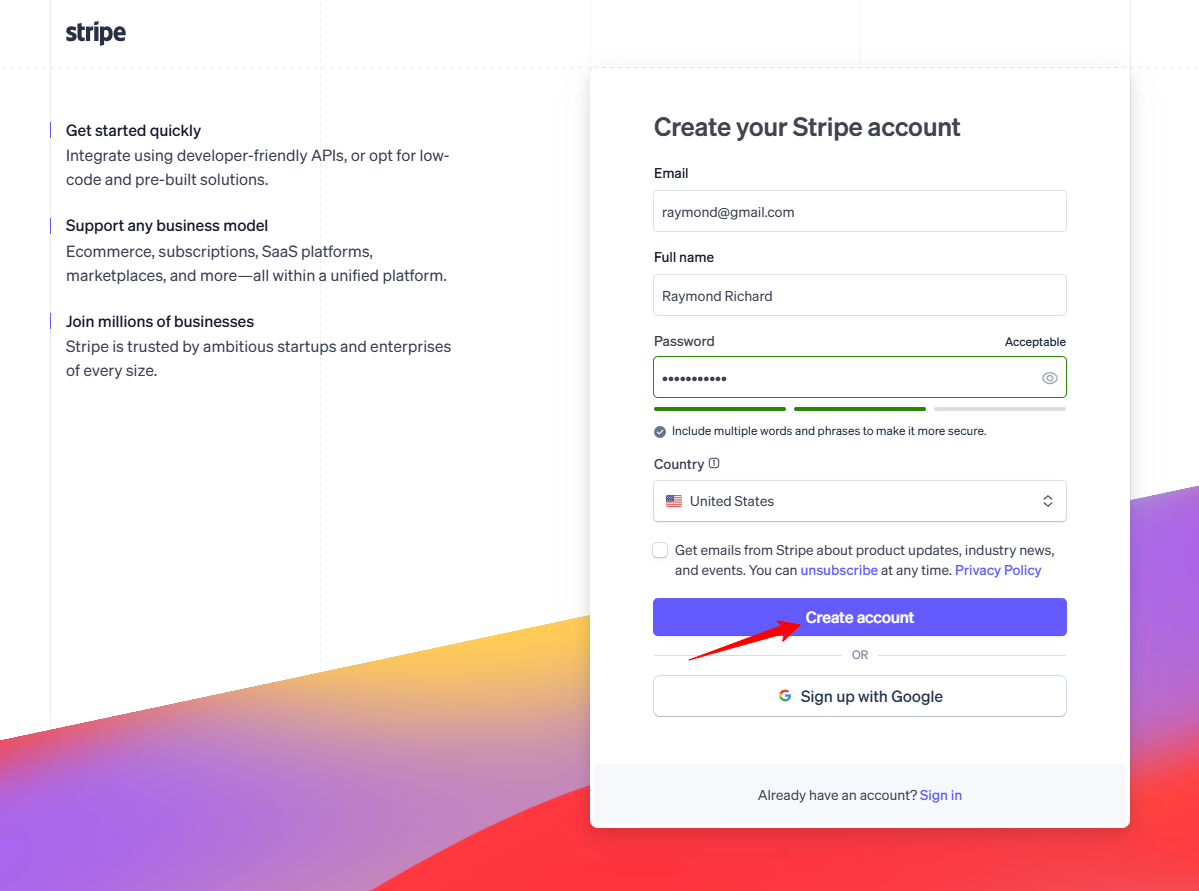
At first, you have to go to stripe signup page. After clicking the create account button with proper email, password, etc., it will redirect to the next step
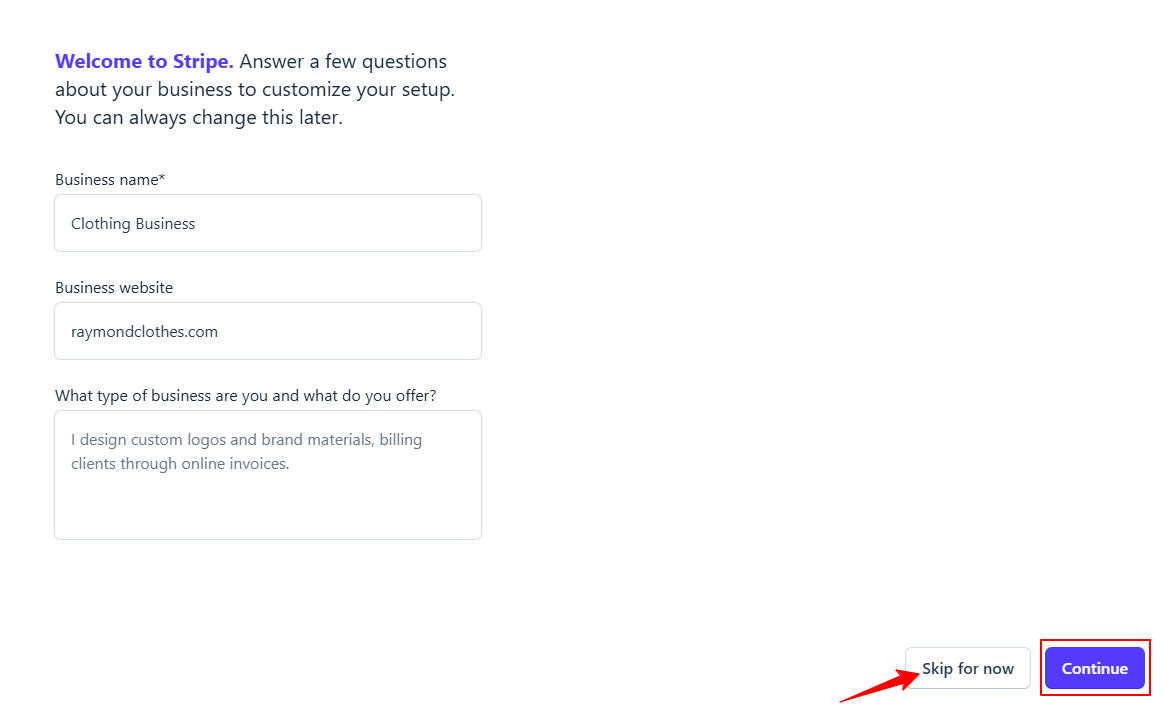
You can Skip for now button or click Continue button by completing all fields
Please select your preferred checkbox from below
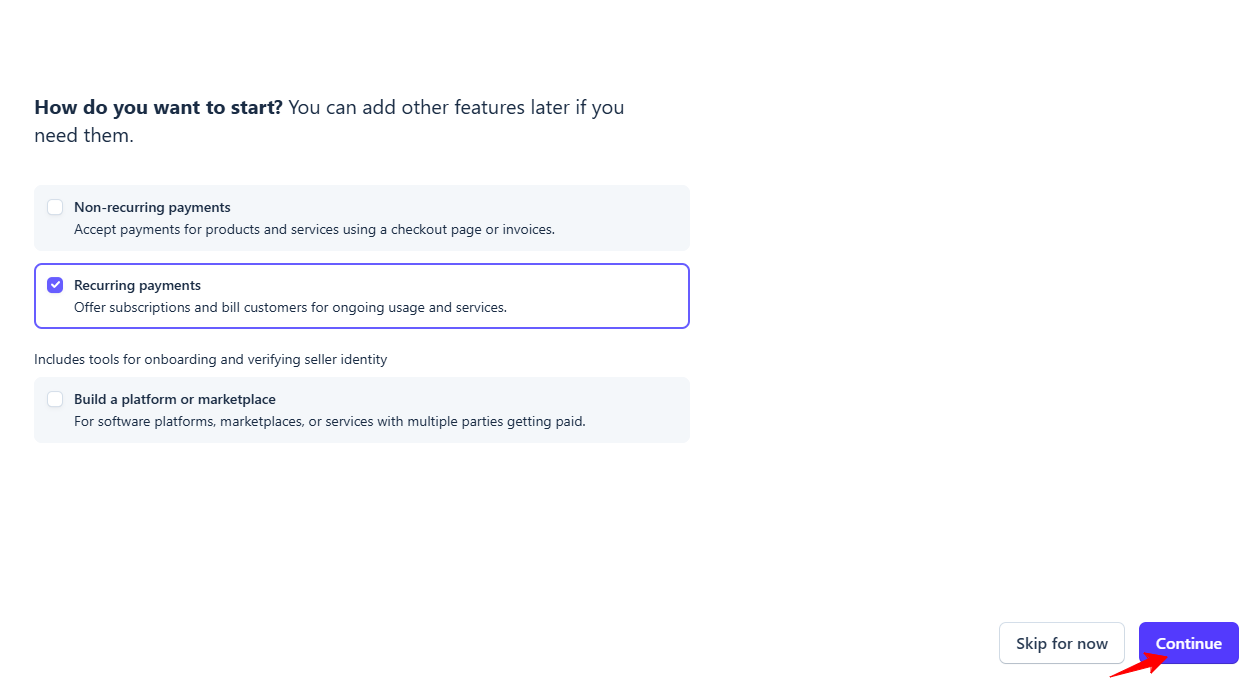
After selecting the checkbox, please click the Continue button, and it will redirect to the last step.
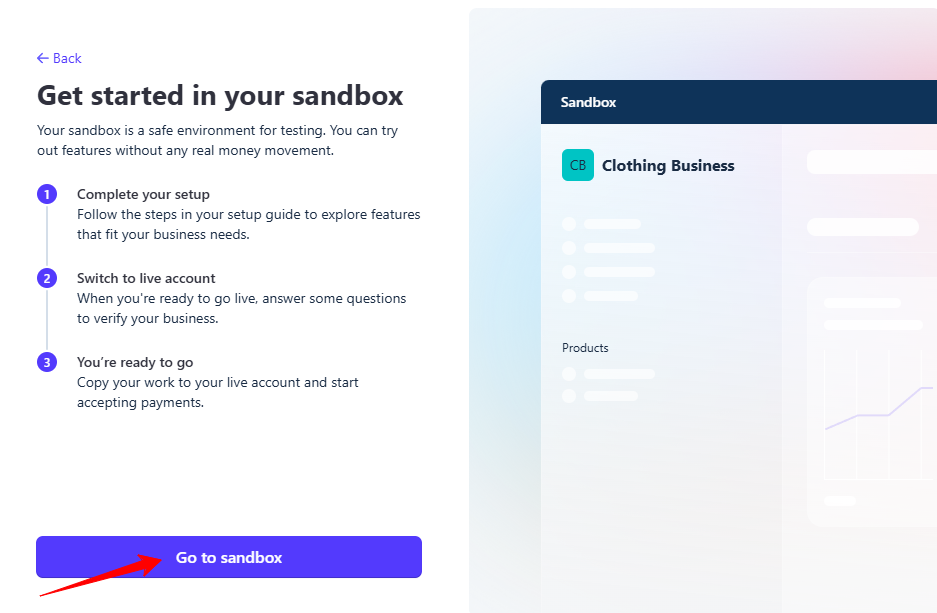
Now your sandbox is ready.
From the left sidebar, go to Developers > API keys. Under the Standard Keys section, you can collect the Secret Key and Publishable Key for easily.
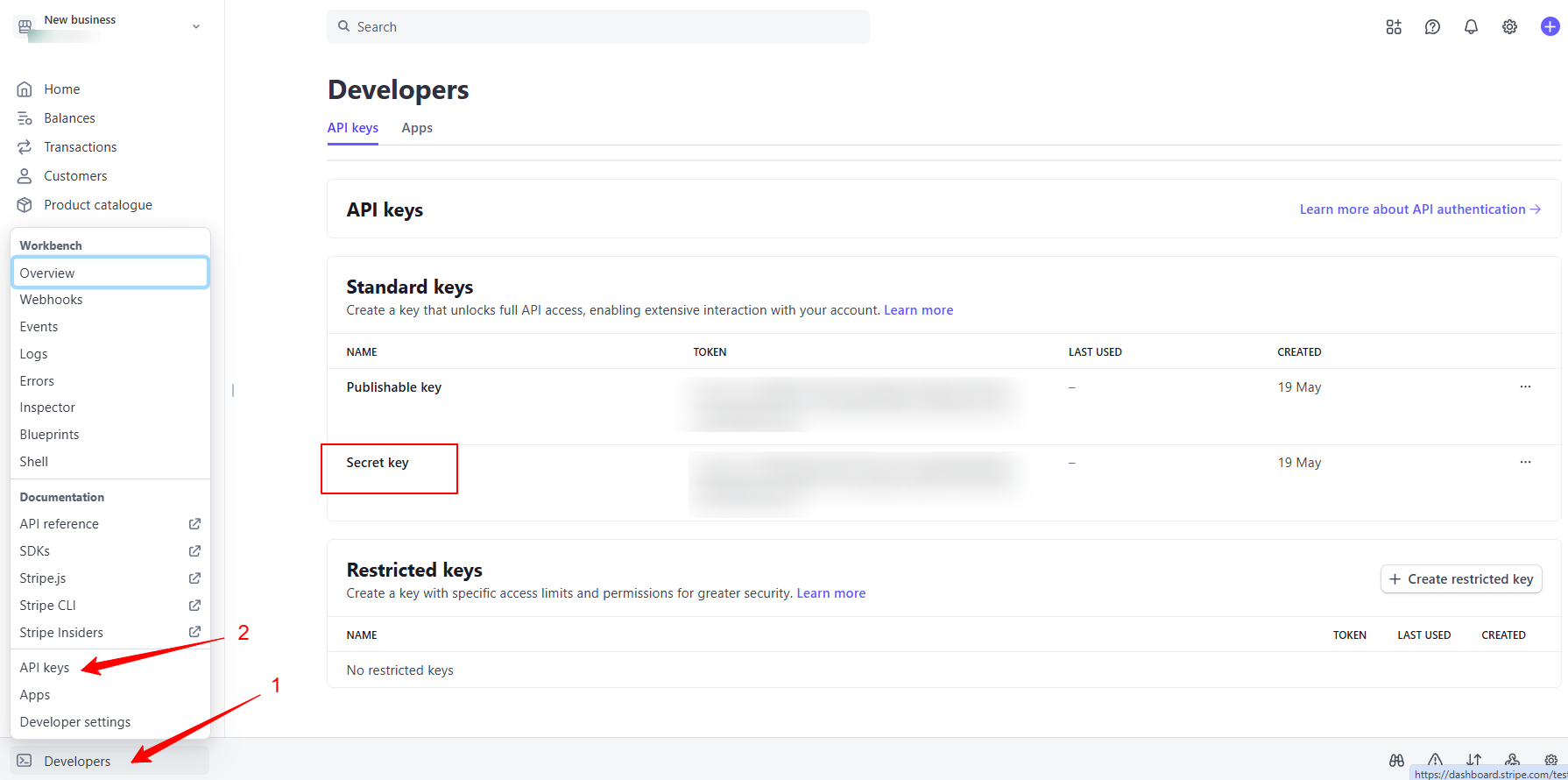
Please click on the settings icon to get connect section. After clicking on the settings icon, you will now be able to see the connect section
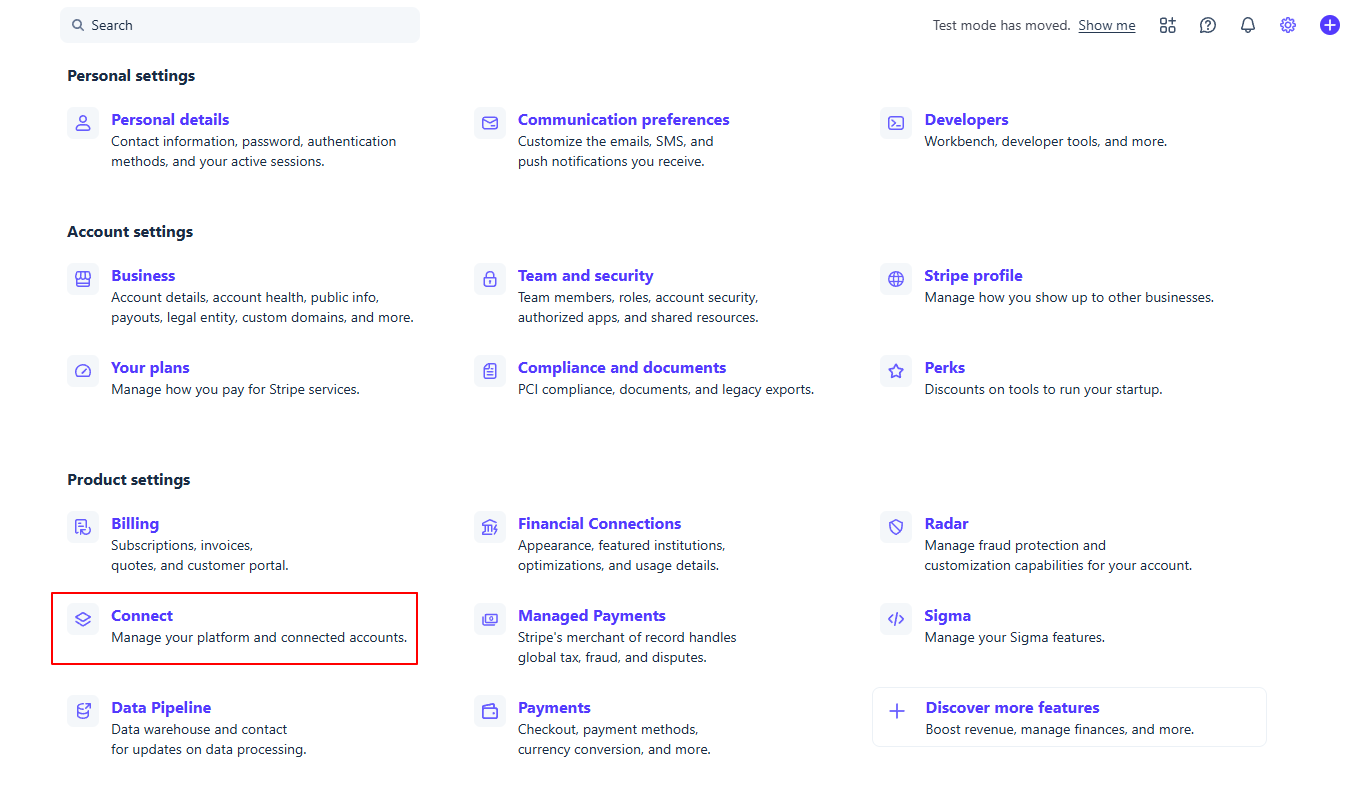
To get the Client ID, you’ll need to access your Connect settings:
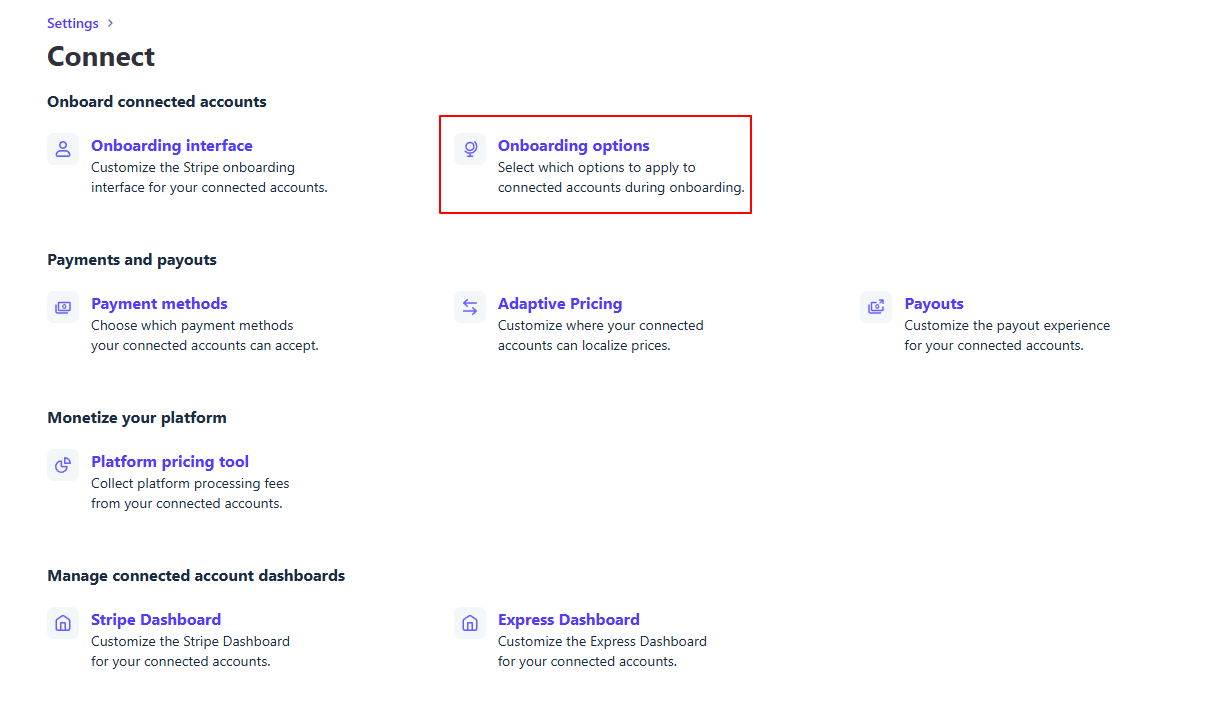
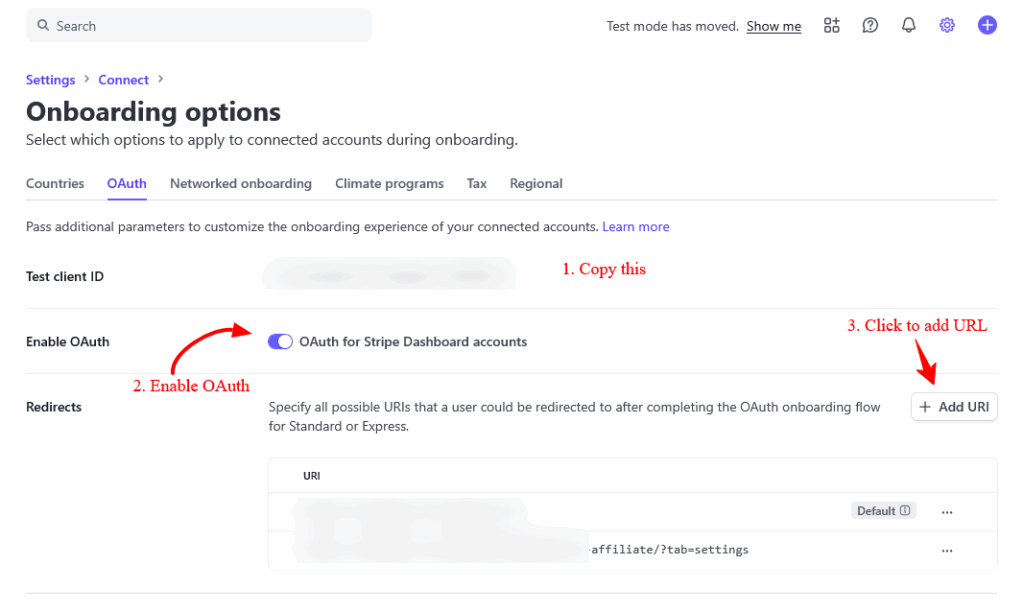
- In your Stripe dashboard, go to: Settings > Connect > Onboarding Options > OAuth
- Find the Live Client ID listed for your platform and copy this.
- Enable OAuth for Stripe dashboard accounts.
- Add your Affiliate dashboard settings tab URL.
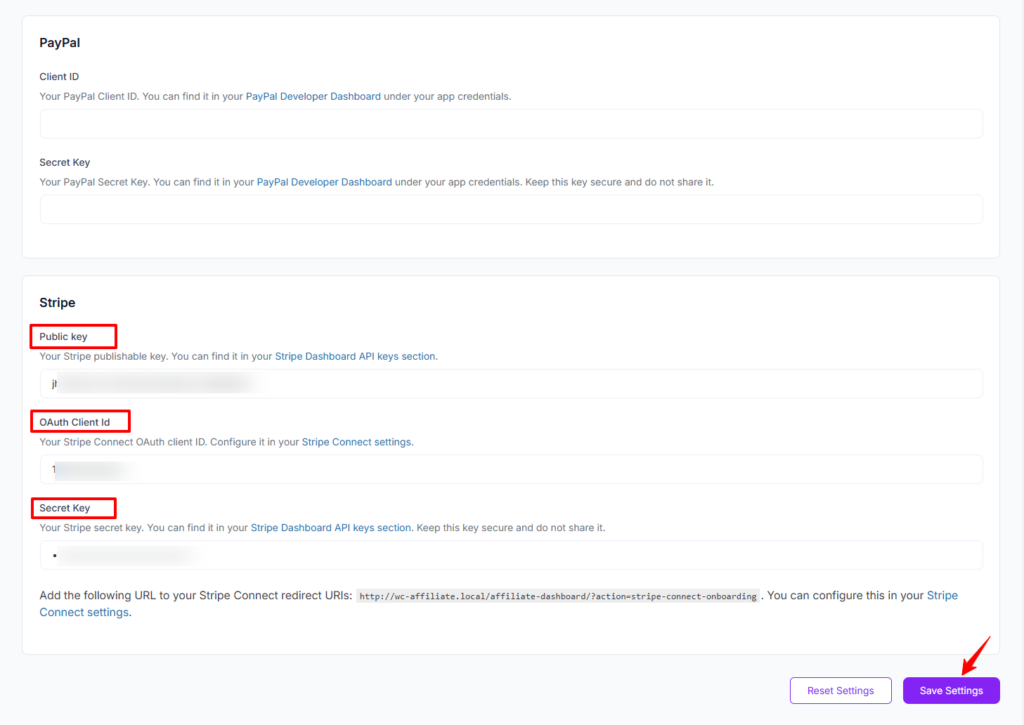
Paste the Public key, OAuth Client Id and Secret Key into the corresponding fields Under Payout Methods from WC Affiliate > Settings > Payout. Click Save Settings.
That’s it! Your Stripe payout integration is now ready. When affiliates request payouts, the system will use your Stripe connection to process payments securely.
Recommended Setup Workflow
- Set your Minimum Payout Amount
- Enable your preferred Payout Methods
- Configure PayPal/Stripe/Wise/Payoneer credentials
- Add the Stripe redirect URL (if using Stripe)
- Enable Auto Payout (optional)
- Click Save Settings
Was this doc helpful?