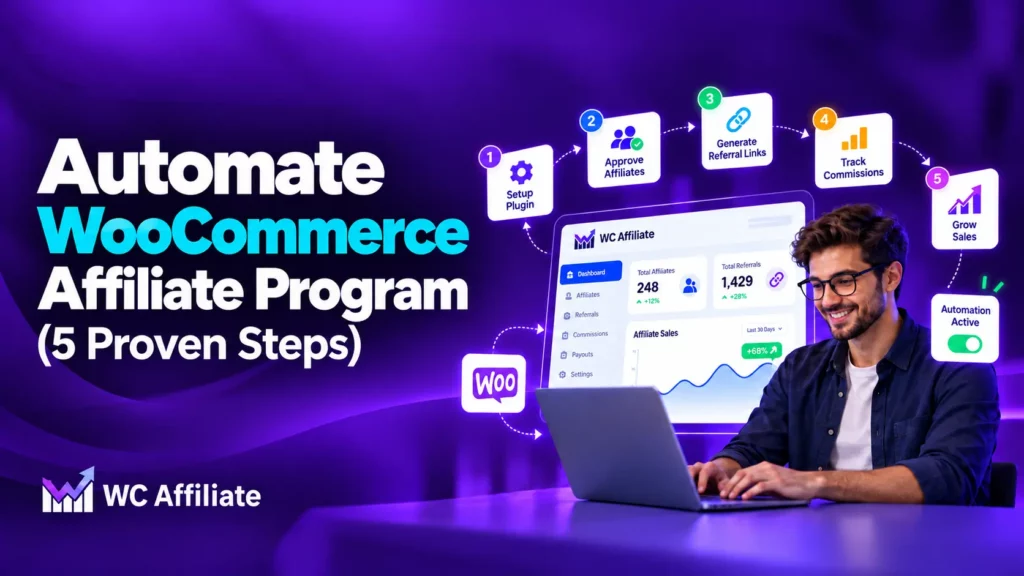
You can automate WooCommerce affiliate program tasks like referral tracking, commission calculation, email notifications and payouts. Each one runs on rules, so you don’t have to touch every order. Affiliate approval can run on its own too, but it works best with a few safeguards in place.
If you run your program by hand today, you know the routine. You check new applications, match orders to affiliates, work out commissions in a spreadsheet, and send payouts one by one at the end of the month. That works with five affiliates. It falls apart at fifty.
This guide walks you through five steps to automate your WooCommerce affiliate program, plus what to keep under your control.
What can you automate in a WooCommerce affiliate program?
Almost every repeat task in the affiliate lifecycle can run on rules. The table below compares the manual way with the automated way.
| Task | Manual way | Automated way | Automate it? |
| Affiliate signup | Read each application, create the account yourself | Registration form with auto approve | Yes, with limits |
| Referral tracking | Match orders to affiliates by hand | Referral links and coupons logged at checkout | Yes |
| Commission calculation | Spreadsheet formulas for every order | Commission rules by rate, product or affiliate | Yes |
| Payouts | Send PayPal or bank transfers one by one | Automatic payouts to affiliates | Yes, with safeguards |
| Reporting | Export orders and send stats by email | Affiliate dashboard with real-time numbers | Yes |
| Notifications | Write each email yourself | Automatic emails for signups and updates | Yes |
The pattern is simple. Anything that follows a fixed rule should be automated. Anything that needs judgment should stay with you.
What you should still keep manual
Automation saves time, but it doesn’t replace your judgment. A few parts of an affiliate program are worth watching yourself, at least in the first months.
- Brand fit of new affiliates. A coupon site that lists your codes next to unrelated products may not suit your brand. If that matters to you, review applications instead of approving them automatically.
- The first payout of each affiliate. A quick look at the first payment catches self-referrals and bad payment details early.
- Rate changes for top affiliates. Raising a commission for your best partner is a business decision, not a rule.
- Odd traffic patterns. A sudden spike of orders followed by refunds needs a person to look at it.
Most store owners end up with a hybrid setup. Routine work runs on its own, and you step in only when something looks unusual.
How to automate WooCommerce affiliate program (step by step)
Here’s the setup order that works best. Each step builds on the last, so you can stop after any of them and still have a working program.
Step 1: Let affiliates sign up and get approved on their own
Affiliates register through the dashboard page that the wizard created. In the wizard, choose “Create a new page” so WC Affiliate adds the page and the required shortcode for you. If you want a full landing page with benefits and terms around the form, our guide on creating an affiliate sign-up page in WooCommerce shows the layout.
Next, decide how approval works:
- Go to WC Affiliate → Settings → Basic Settings.
- Turn on Auto Approval to give new affiliates access right after they register.
- To screen applicants instead, leave it off and review them under WC Affiliate → Affiliates → All Affiliates, where you can approve or reject each one.
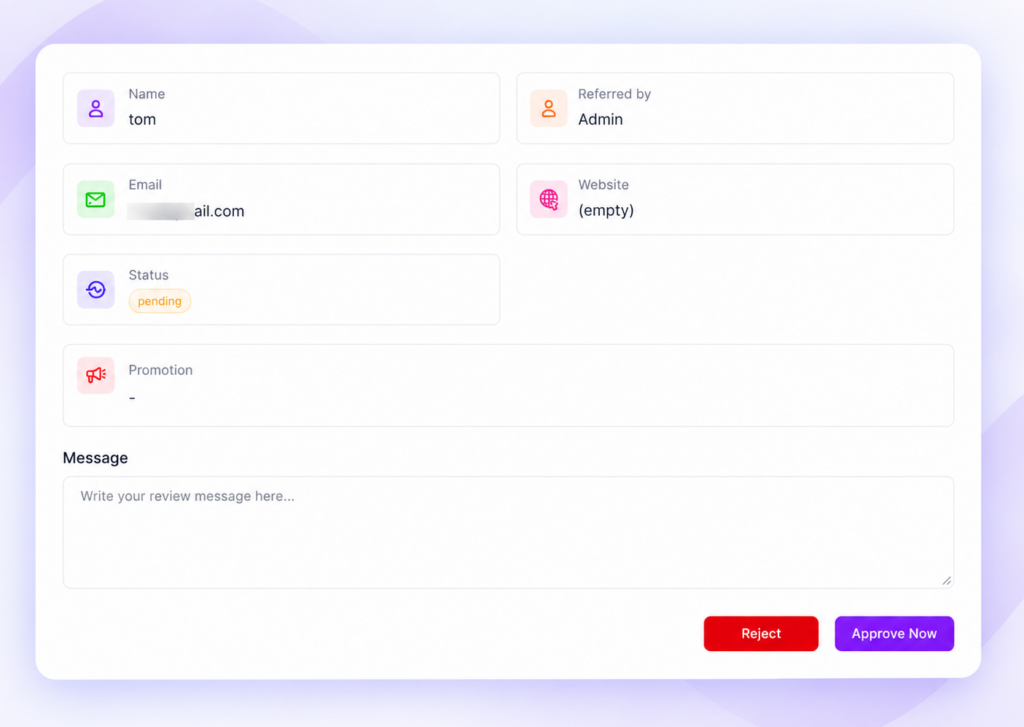
If you use WC Affiliate Pro, the Registration Form Builder lets you add fields such as text, email, checkbox and select, and arrange them in your own order.
Step 2: Track sales with referral links and coupons
Every affiliate gets referral links from their own dashboard, so you don’t create links for anyone. When a visitor clicks a link and buys, WC Affiliate logs the visit and the referral against that affiliate. You can see both in the Visits and Referrals overviews in your admin dashboard. The cookie period you set in the wizard decides how long a click stays valid.
Links don’t work everywhere, so add coupon tracking for podcasts, videos and offline events. With WC Affiliate Pro, the setup takes three moves:
- Create the coupon in WooCommerce under Marketing → Coupons.
- Turn on coupon-based tracking in the WC Affiliate settings.
- Assign the coupon to the affiliate who will share it.
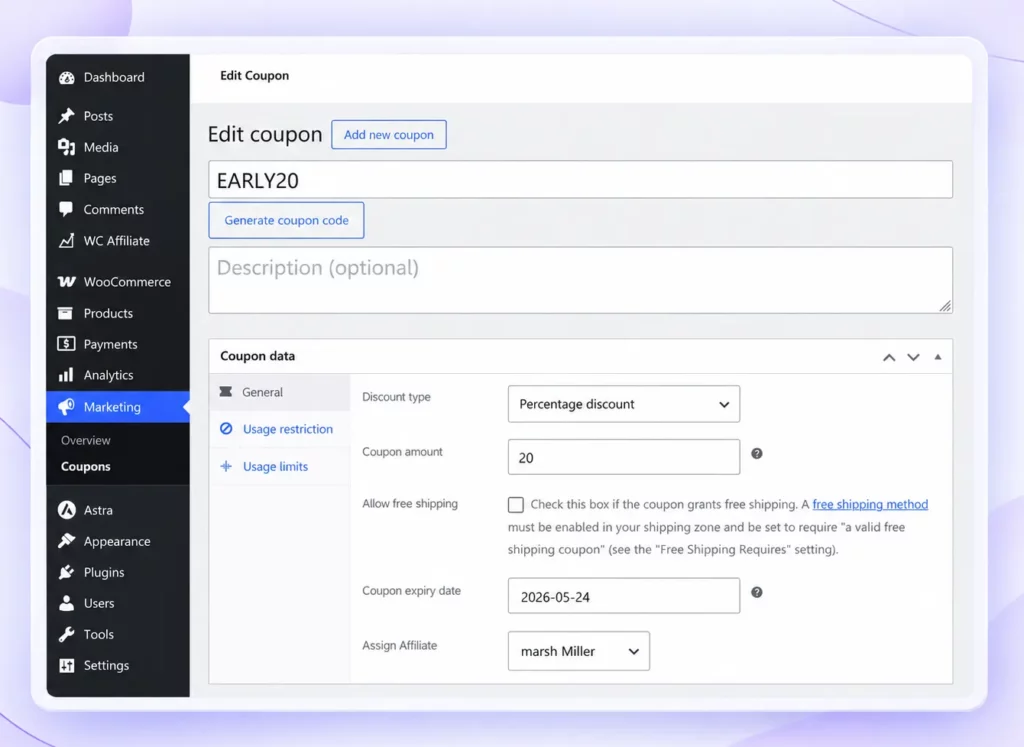
Our WooCommerce coupon code tracking guide covers naming and common mistakes. Before you promote anything, place one test order with the link or code and check that the referral appears under the right affiliate.
Step 3: Set your commission rules once
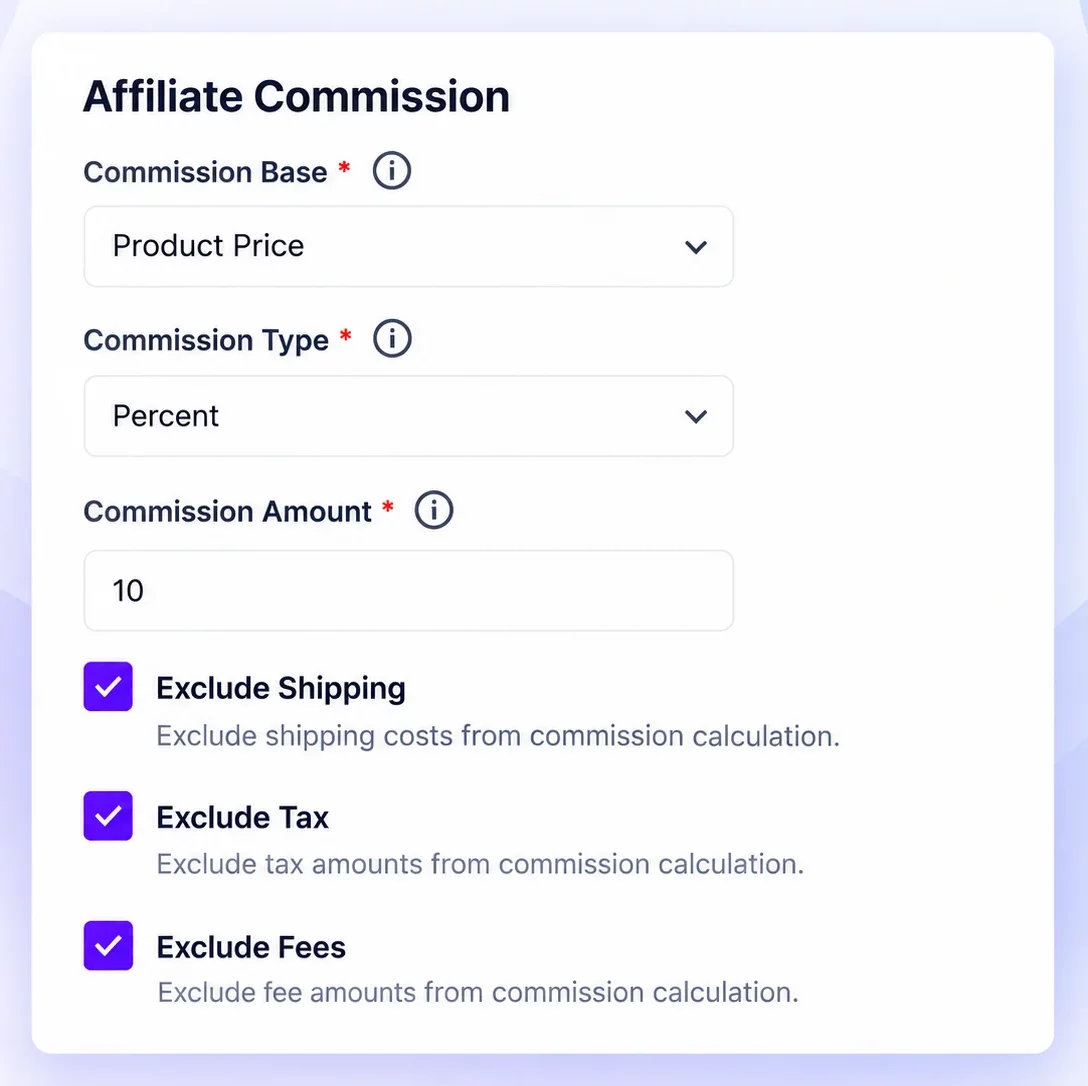
Open WC Affiliate → Settings → Basic Settings and find the Affiliate Commission section. Choose three things:
- Commission Base: Order Total, Order Subtotal or Product Price.
- Commission Type: Percentage or Fixed.
- Commission Amount: for example, 10 for a 10% commission.
You can also leave shipping, tax and extra fees out of the calculation. Save, and every future order uses these rules.
Then add exceptions only where they make sense. To give one affiliate a different rate, open their profile under WC Affiliate → Affiliates. For a product with a different margin, set a commission on that product’s edit page. A simple example is 10% storewide, 15% for one top partner, and 20% on a high-margin digital product. Our guide to WooCommerce affiliate commission structure helps you pick the numbers.
Step 4: Turn on automatic payouts
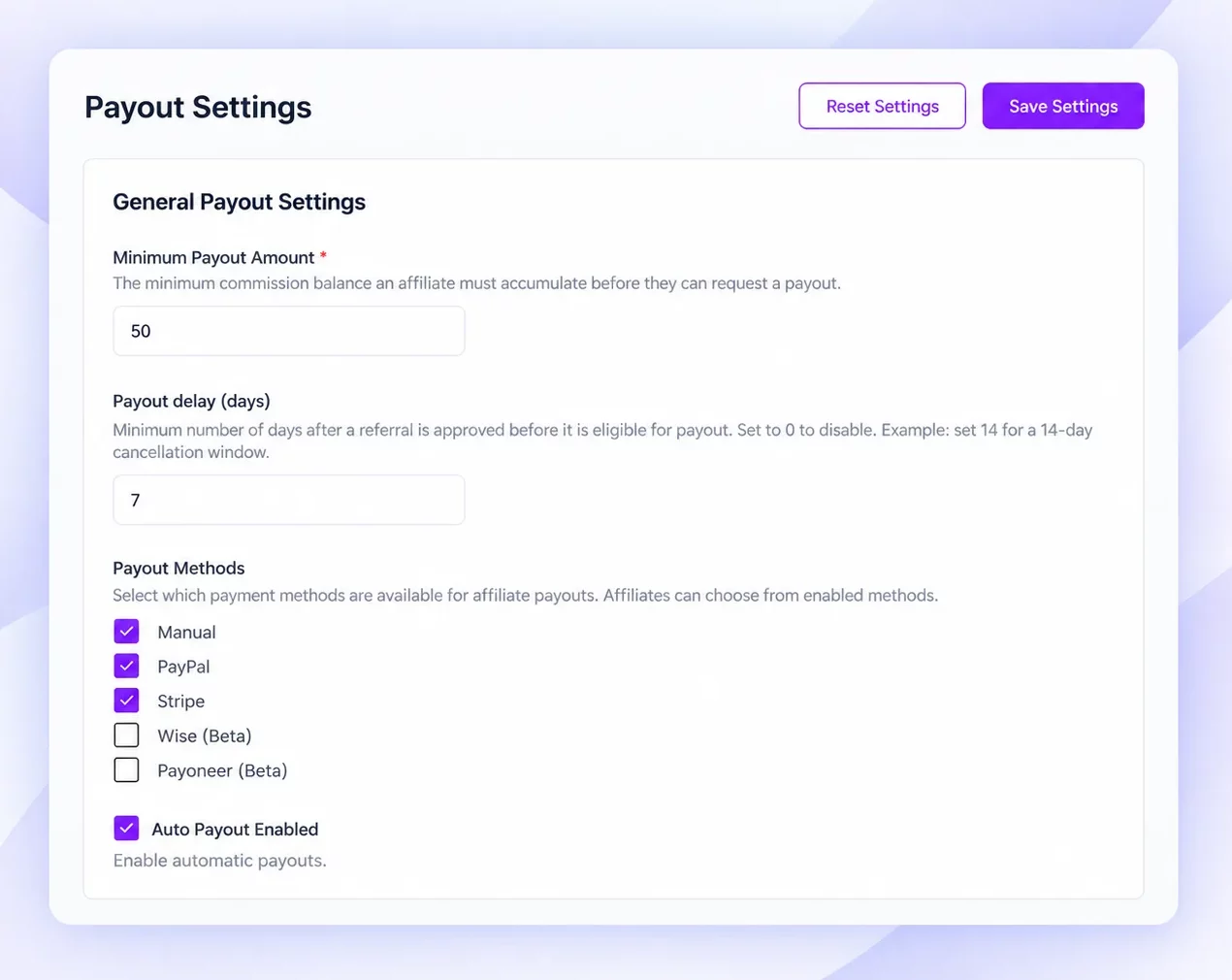
Payouts take the most time by hand, so this step pays off fast. The free plugin supports manual payouts. WC Affiliate Pro adds automatic payouts through PayPal, Stripe, Wise and Payoneer.
- Open WC Affiliate → Settings → Payout Settings.
- Set your minimum payout amount.
- Add the details for the payment method you want to use.
- Turn on the auto payout option.
- Run one small test payout, then confirm it appears in the transactions overview in your admin dashboard.
If you plan to use PayPal, it helps to know how PayPal Payouts works. It sends batch payments to recipients by email address, phone number or PayPal ID.
Step 5: Let email notifications keep everyone informed
Affiliates ask the same questions again and again. Did my referral count? When do I get paid? WC Affiliate answers most of them with automatic emails. Open WC Affiliate → Settings → Email and choose what to send.
- To you: a new affiliate application, a payout request, a commission earned.
- To affiliates: application confirmation, approval, rejection, commission earned, payout processed.
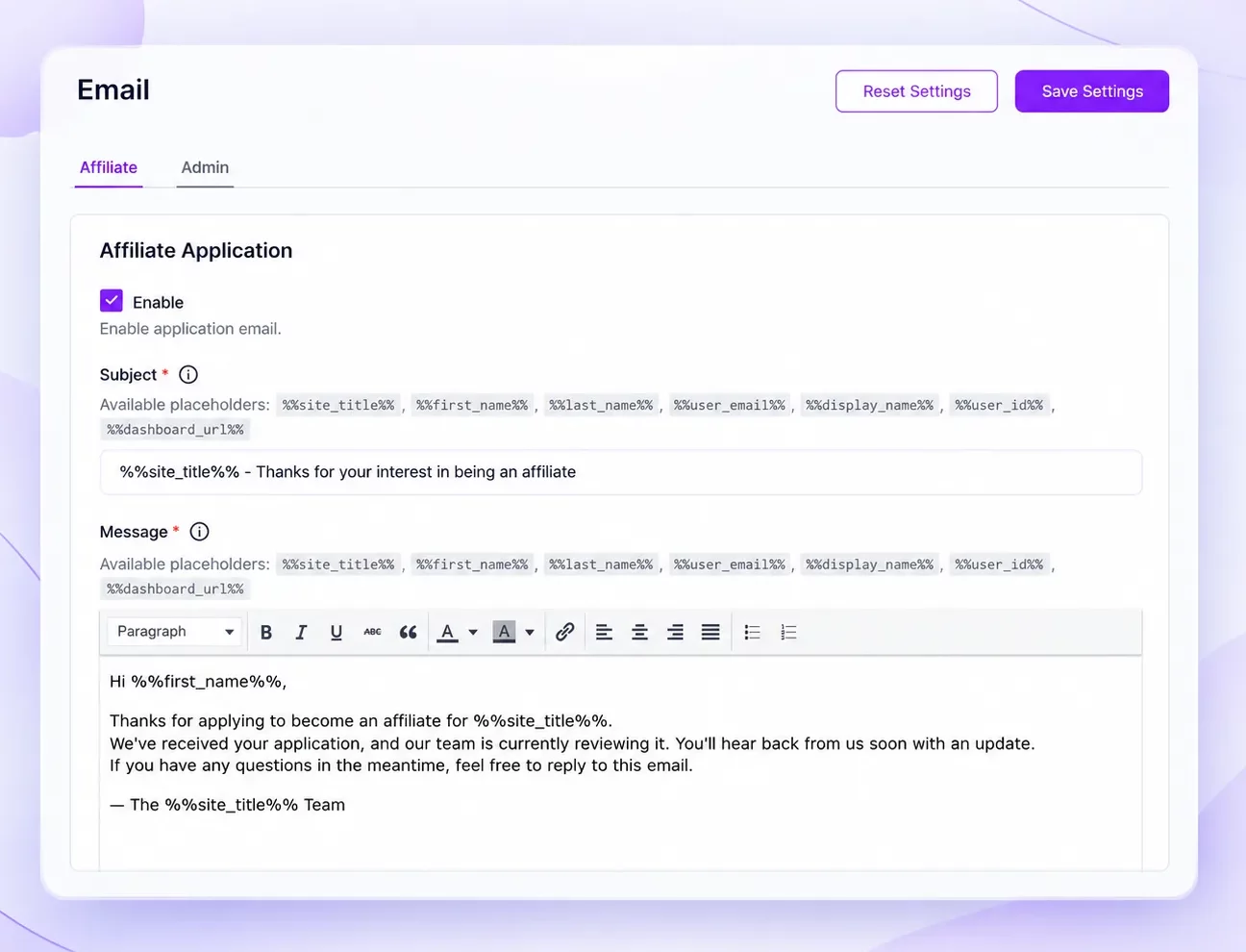
The wizard sets these up the first time, so this step is a quick review. A short welcome message also helps new affiliates make their first sale. We cover that in affiliate onboarding from signup to first sale.
Payout safeguards to set before you go fully automatic
Automatic payouts are safe when the rules around them are clear. Write your payout policy first, then set the automation to match it.
A simple policy looks like this: “Commissions are paid once a month, for orders older than 30 days, with a minimum balance of $25.” The 30 days should match your return window, so you never pay for an order that gets refunded a week later.
A few other safeguards are worth adding:
- Pay after the return window: If customers can return products for 30 days, don’t pay on day 2.
- Set a minimum payout: Small balances create more transaction work than they’re worth.
- Review each affiliate’s first payout: Make it a quick manual check, then let the rest run on their own.
- Spot-check once a week: Open the referrals report and look for unusual orders, repeated customers or self-referrals.
- Keep a record: Save payout history so you can answer any question from an affiliate in minutes.
In WC Affiliate, match your written policy to the options under Settings → Payout Settings.
Common mistakes when automating an affiliate program
Most problems come from switching things on too fast. Watch for these.
- Skipping the test order: A broken coupon or link means lost commissions and unhappy affiliates. Always test first.
- Paying too early: Refunds after payout cost you twice, once for the sale and once for the commission.
- Approving everyone without a look: Auto approve works well for open programs, but check new accounts for the first few weeks.
- Never reading the numbers: Automation hides the daily work, not the results. Review clicks, conversions and refunds each month. Our guide to affiliate marketing metrics lists the ones that matter.
- Forgetting your affiliates: A program on autopilot still needs good communication. Send updates, share new offers and say thanks.
Disclosures and taxes: two things automation won’t handle
Automation moves money and data. It doesn’t cover your legal duties, so keep these two in mind.
Disclosures: In the US, the FTC expects people who earn from recommending a product to make that relationship clear. Tell your affiliates to say so plainly, close to the recommendation, using words like “ad” or “sponsored.” The FTC’s Disclosures 101 guide explains how. Add a short disclosure rule to your affiliate terms.
Taxes: If you pay affiliates in the US, you may need to report what you pay them on Form 1099-NEC, depending on the amount and their status. The IRS page on Form 1099-NEC has the current rules. Rules differ in other countries, so check with your accountant.
The simple way to run this on WooCommerce
You can build parts of this with separate tools, but it gets messy fast. A WooCommerce-native plugin keeps tracking, commissions and payouts in one place, which is the main reason to use one.
WC Affiliate is built that way. The free version gives you an admin dashboard, an affiliate dashboard, unlimited affiliates, flexible commissions, real-time reporting, manual payouts and email notifications. WC Affiliate Pro adds automatic payouts through PayPal, Stripe, Wise and Payoneer, along with coupon tracking, branded shortlinks, a registration form builder and multi-level commissions.
There are no caps on the number of affiliates, and a lifetime license is available, so your costs don’t grow as your program does. To get started, follow the initial setup wizard guide, or compare plans on the pricing page.
Final Words
Automating your WooCommerce affiliate program is mostly a matter of order. Start with sign-up and tracking, add commission rules, then turn on payouts once your safeguards are in place. Keep a quick manual check on first payouts and unusual traffic.
Done well, the program runs in the background while you focus on the store. Your affiliates also get what they want most: clear numbers and on-time payments.
Frequently Asked Questions
Mostly, yes. Tracking, commission calculation, notifications and payouts can run on their own. Keep a light manual check on new affiliates, first payouts and unusual orders.
Use an affiliate plugin with automatic payouts. In WC Affiliate Pro, connect PayPal, Stripe, Wise or Payoneer, turn on auto payouts, and run a small test payment first.
Yes, when you set limits first. Pay after your return window, set a minimum payout, review each affiliate's first payment, and check your referrals report every week.
WooCommerce has no affiliate system of its own, so you need a plugin. WC Affiliate has an auto approve option that gives new affiliates access right after they register.